
A heavy site is heavy because of images, nine times out of ten. There are five things you can do with HTML and CSS alone. Start here.
1. Shrink your image files
The biggest win. A photo from your phone is 3–5MB; for the web, under 200KB looks fine.
- Resize oversized images to the size you display them at (1600px wide covers most cases)
- Run them through a compression tool
- Convert photos to WebP for the same look at a smaller size
2. Add loading=“lazy” to images
Tells the browser not to load an image until it’s about to be seen. One attribute, real effect.
<img src="gallery1.jpg" alt="A long-tailed tit in the snow" loading="lazy">The more images sit lower down the page, the more it helps.
3. Put width and height on images
They reserve space while the image loads. Without them, your text jumps the moment an image arrives.
<img src="shima.png" alt="A long-tailed tit" width="800" height="600">img {
width: 100%;
height: auto;
}The HTML numbers exist to convey the aspect ratio. With width: 100% and height: auto in CSS, your layout stays as designed.
4. Use fewer web fonts
Nice-looking fonts from Google Fonts load a file per style, and font files can run from hundreds of kilobytes into megabytes.
- Stick to one or two families
- Choose only the weights you use (400 and 700, say)
- Consider web fonts for headings only, with system fonts for body text
5. Get the loading order right
CSS in <head>, JavaScript just before </body> (or with defer).
<head>
  <link rel="stylesheet" href="style.css">
</head>
<body>
  <!-- content -->
  <script src="script.js" defer></script>
</body>
defer means “run this after the HTML is parsed.” Without it, loading JavaScript blocks the page from rendering.
Measuring: PageSpeed Insights
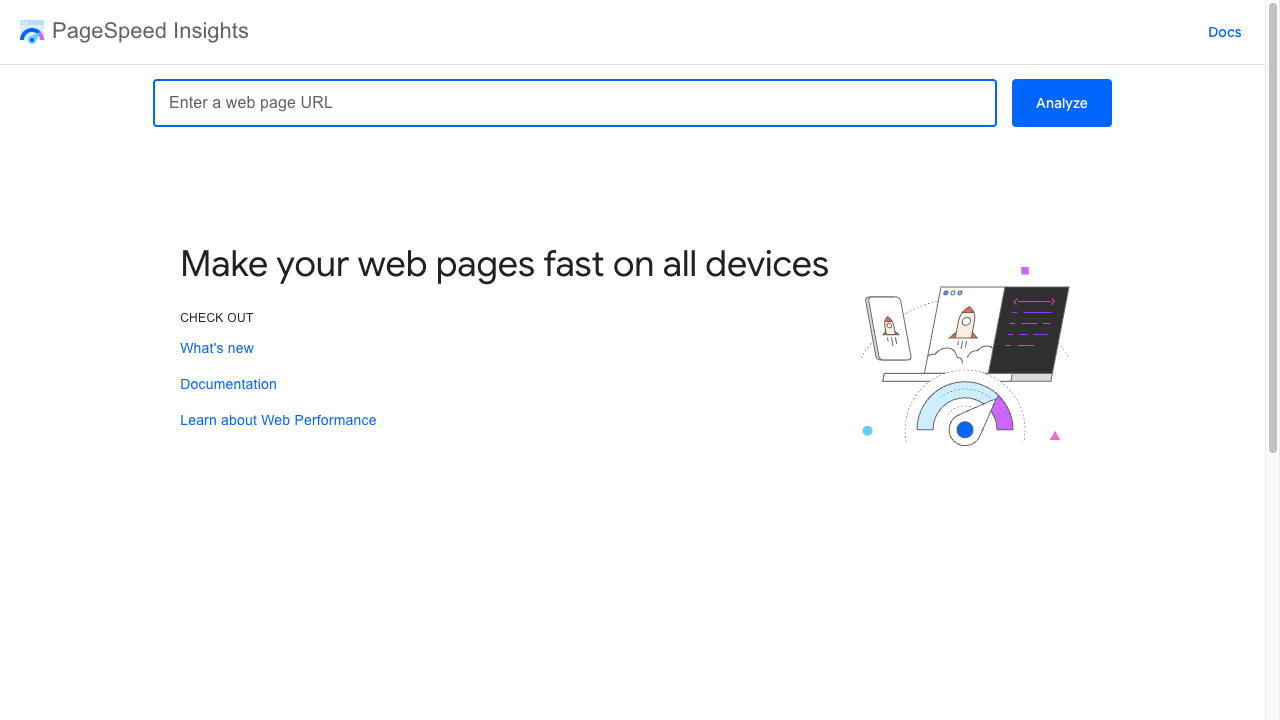
Don’t guess, measure. Enter a published URL and get a score and a list of improvements for mobile and desktop, free.
Of the jargon it produces, only two things matter early on.
| Metric | Meaning | What fixes it |
|---|---|---|
| LCP | How long until the largest element appears | Lighter images |
| CLS | How much the layout shifted while loading | width and height on images |
Do them in this order
It looks like a lot, but the priority is clear.
- Lighten images — 80% of the effect
- loading=“lazy”, width and height — just attributes
- Fewer fonts — drop a family
- defer — one word
Work down that list and most sites end up fast enough.
Summary
- Slowness is mostly images; making them lighter helps most
loading="lazy"only on off-screen images;widthandheightstop the jumping- Measure with PageSpeed Insights and work down the opportunities it lists
A fast site quietly signals that it was built with care.