
The colors of the screen you write code on can be changed however much you like, anytime. Just by installing one extension called a color theme, both readability and your mood change completely. Here are staple themes, by type, with screenshots.
TipsVSCode extensions worth installingA theme is a kind of extension too. The basics of installing them are over hereHow to switch themes
- From the Extensions panel, Install the theme extension you like
- Press
Ctrl+KthenCtrl+T(on Mac,Cmd+KthenCmd+T) to open the theme selection screen - Choose with the up/down keys and it previews on the spot. Once decided, press Enter
Even if a theme you install doesn’t grab you right away, you can switch to another one anytime with these steps. Feel free to try several.
Points to consider when choosing a theme
You can choose by look and preference alone, but checking these three points as well means fewer regrets later.
- Contrast between text and background: too dark or too bright tires the eyes. If you write code for long stretches, a color scheme that isn’t too saturated is easier to stick with
- Range of supported languages: the more popular a theme, the more completely its syntax highlighting covers languages beyond HTML/CSS/JavaScript (like PHP and Python). With a lesser-known theme, some code may stay a single color with no highlighting at all
- The extension’s download count and rating: the numbers shown in the Extensions panel search results. A theme with a high count keeps getting updated too, so it’s reassuring for long-term use
Type 1: Staple dark themes
The kind that’s easy on the eyes and chosen most often.
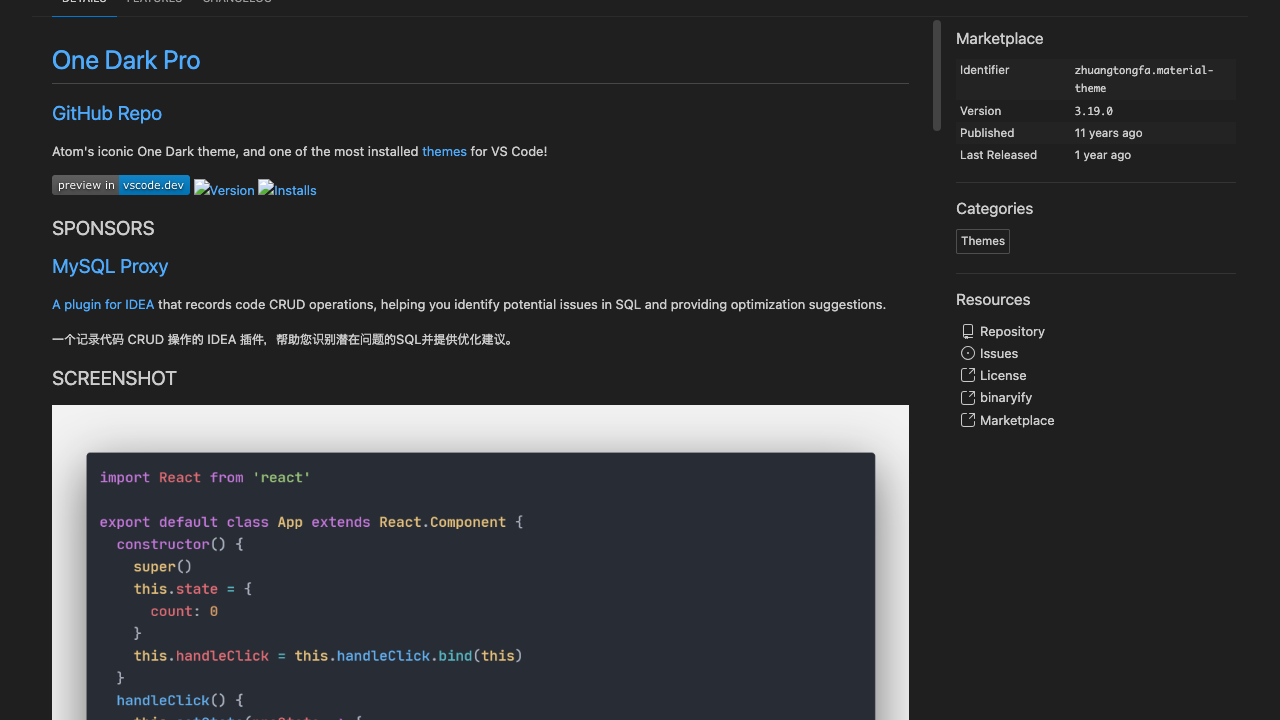
One Dark Pro
A calm, bluish dark theme you could call the most-used in the world.
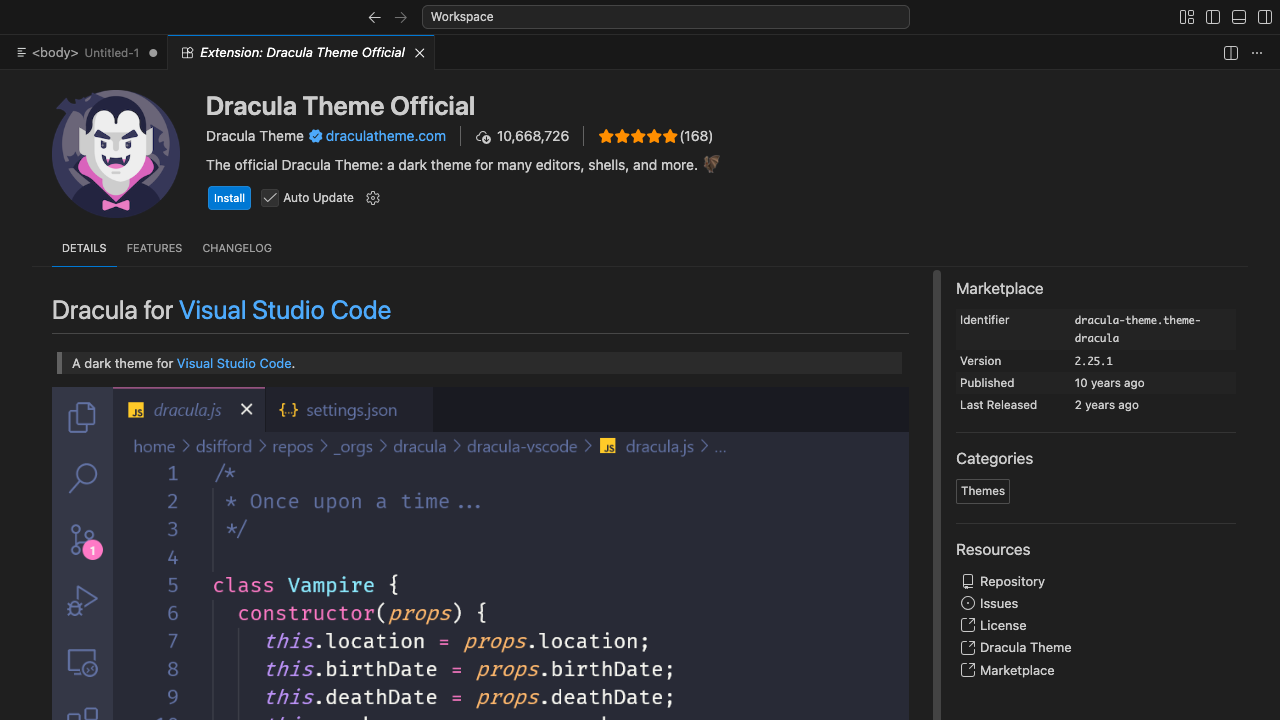
Dracula Official
A dark theme based on purple with clear contrast.
Type 2: Eye-friendly light themes
In a bright room or during daytime work, a theme with a whitish background can be easier to see.
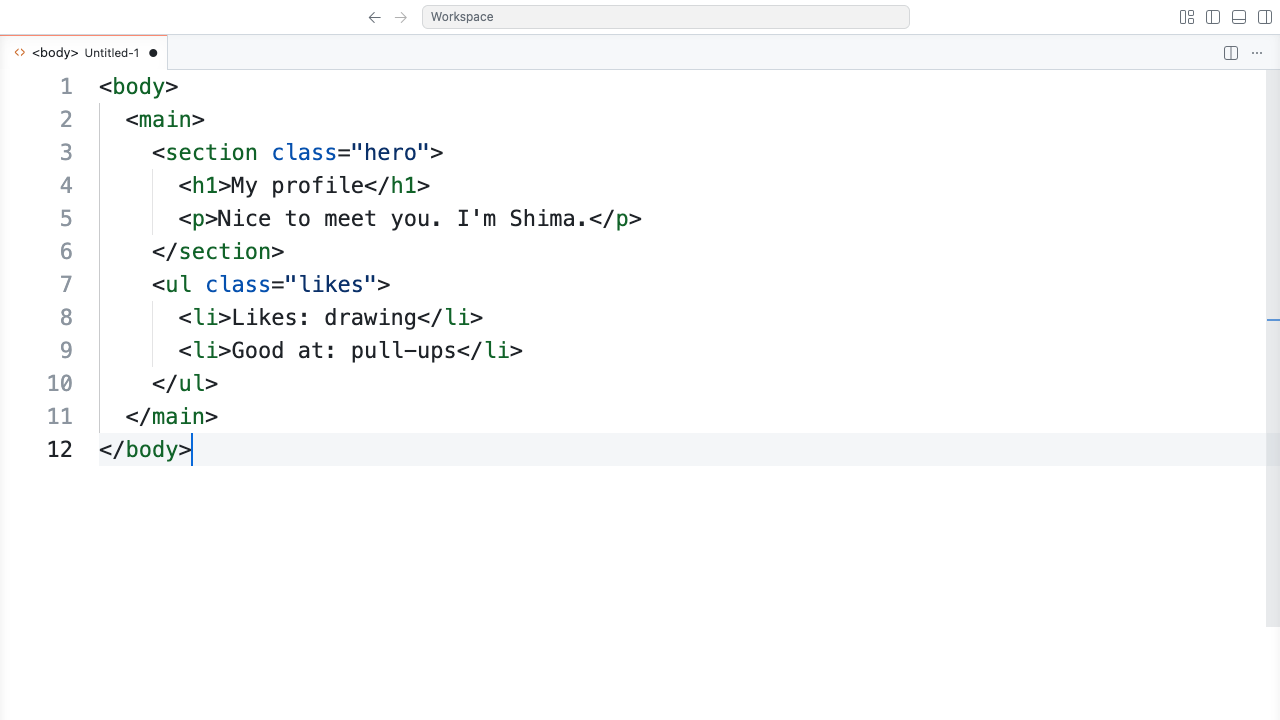
GitHub Theme
A theme with a simple, familiar color scheme put out officially by GitHub.
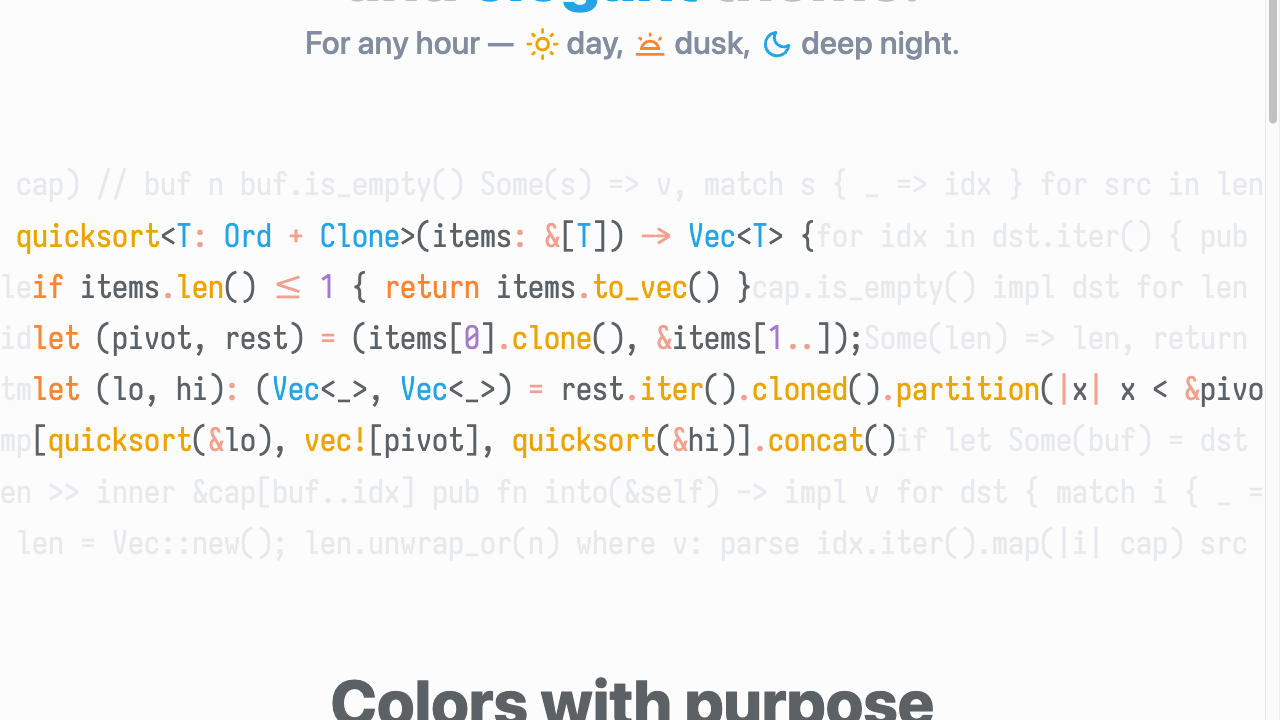
Ayu
An eye-friendly light theme based on pale beige.
Type 3: Themes with standout personality
Atmospheric themes for those who want to enjoy the color scheme itself.
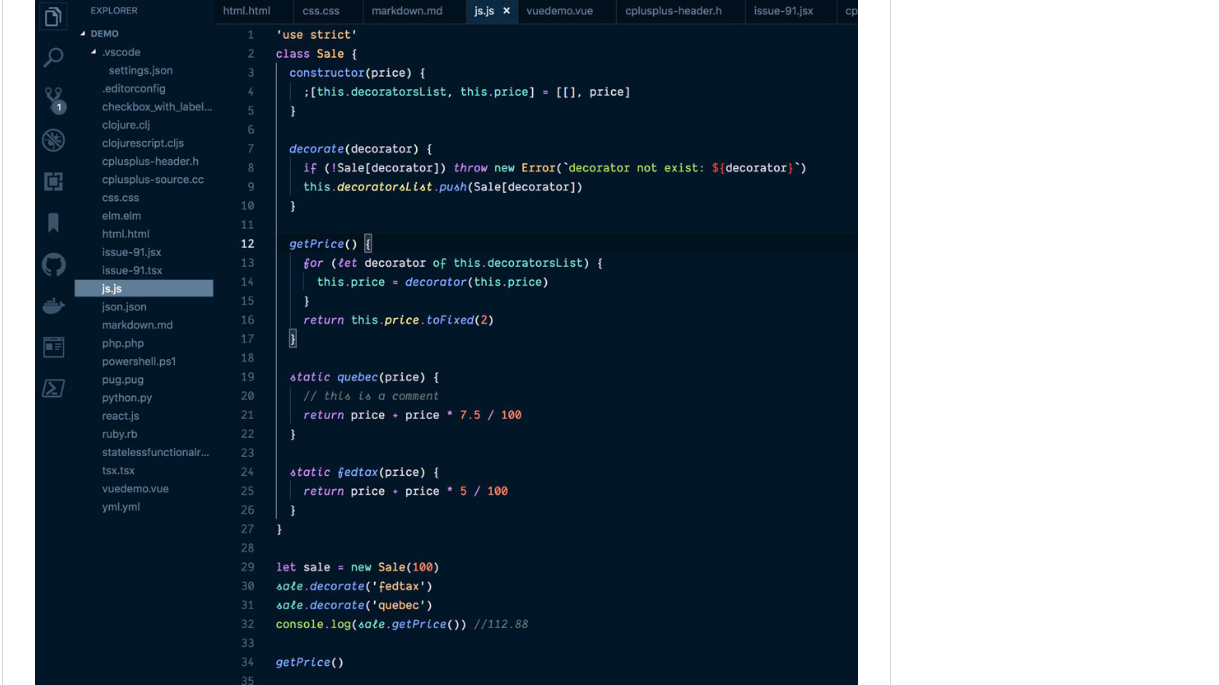
Night Owl
A theme where high-saturation text colors, like stars, shine against a navy background like the night sky.
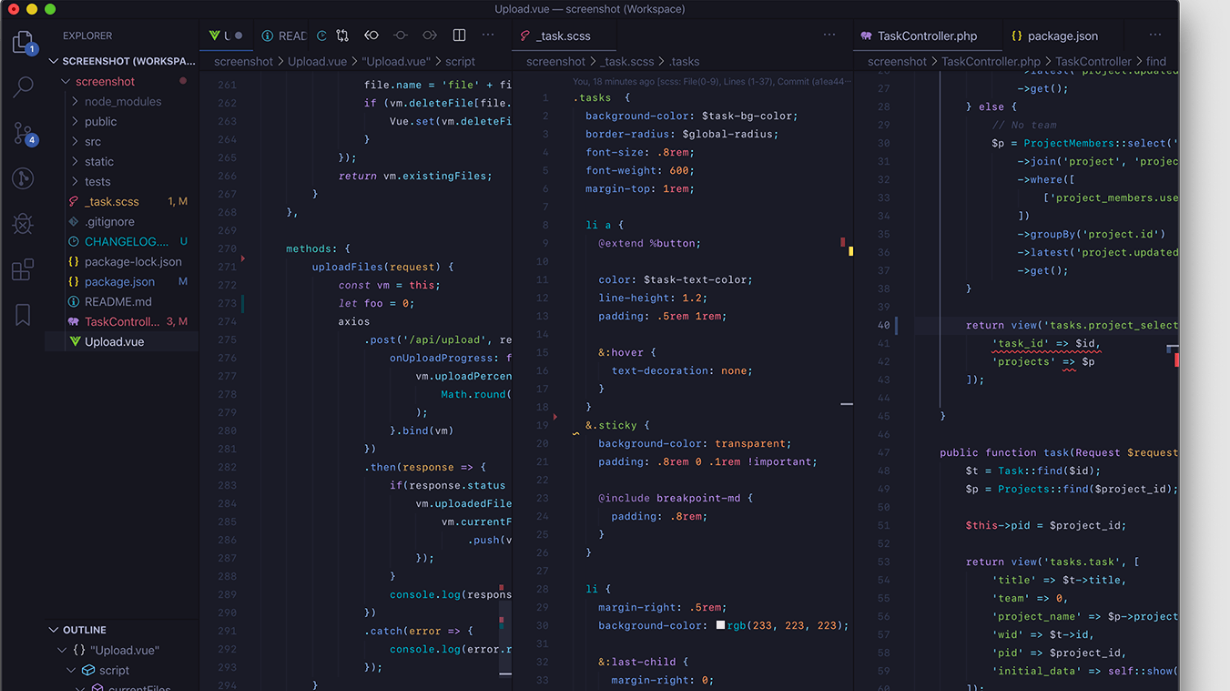
Tokyo Night
An urban-feeling dark theme reminiscent of neon.
The six themes at a glance
Here are all six on one card, for skimming.
| Theme | Brightness | Colour feel | Suits you if |
|---|---|---|---|
| One Dark Pro | Dark | Calm, bluish | When in doubt. The widest language coverage |
| Dracula Official | Dark | Purple + vivid | Telling kinds of code apart matters most |
| GitHub Theme | Both | Familiar, standard | You want dark and light in one package |
| Ayu | Light | Pale beige | You like light but pure white dazzles you |
| Night Owl | Dark | Navy + high saturation | You work long hours at night |
| Tokyo Night | Dark | Blue-purple neon | You care about the atmosphere |
Dark or light—which is better?
People often say dark is easier on the eyes, but the real rule is that the closer your screen’s brightness is to the room’s, the less tiring it is.
- Dark room, night—go dark. A bright screen dazzles, and your pupils stay clamped shut
- Bright room, daytime by a window—go light. With bright surroundings, text on a dark screen sinks and gets hard to read
In other words the right answer changes with the time of day, so having both is the practical move. Install one theme that bundles a dark and a light variant, like GitHub Theme, and Ctrl+K→Ctrl+T is all you need to go between them.
Three settings beyond the theme that help readability
If your eyes still tire after changing the colours, the cause may not be the theme but the text itself. Search for these in the settings (gear icon → Settings).
- Font size—the default sits around 12–14. Just raising it to 15 or 16 noticeably cuts how often you squint
- Line height—
0means automatic. Enter something like1.6and the extra breathing room stops you losing your place in long files - Font family—switching to a monospace font where
0andO,1andlare easy to tell apart makes hunting for typos much easier
Summary
- A theme is one kind of extension. Once installed, switch instantly with
Ctrl+K→Ctrl+T(on Mac,Cmd+K→Cmd+T) - When in doubt, start with the staple One Dark Pro; if you prefer a bright screen, GitHub Theme
- If you don’t like it, change it as many times as you want. Just try it out casually first
- Choose dark or light by the room’s brightness, not taste—or let it follow your OS automatically
- If your eyes still tire, look at font size, line height, and the font, not the colours
Because it’s the screen you look at every day, finding a color that clicks with you makes the very time you spend writing code comfortable.