
Just placing one photo or illustration on a text-only page brings the look much closer to a “proper page” all at once. Here we introduce free illustration and photo stock sites by what you want to do, with screenshots. Bookmark the ones that click for you.
Type 1: Illustrations (for a soft mood)
Easier to reach for than photos, illustrations give a page a gentle impression. From people to seasons and events, they’ve got everything.
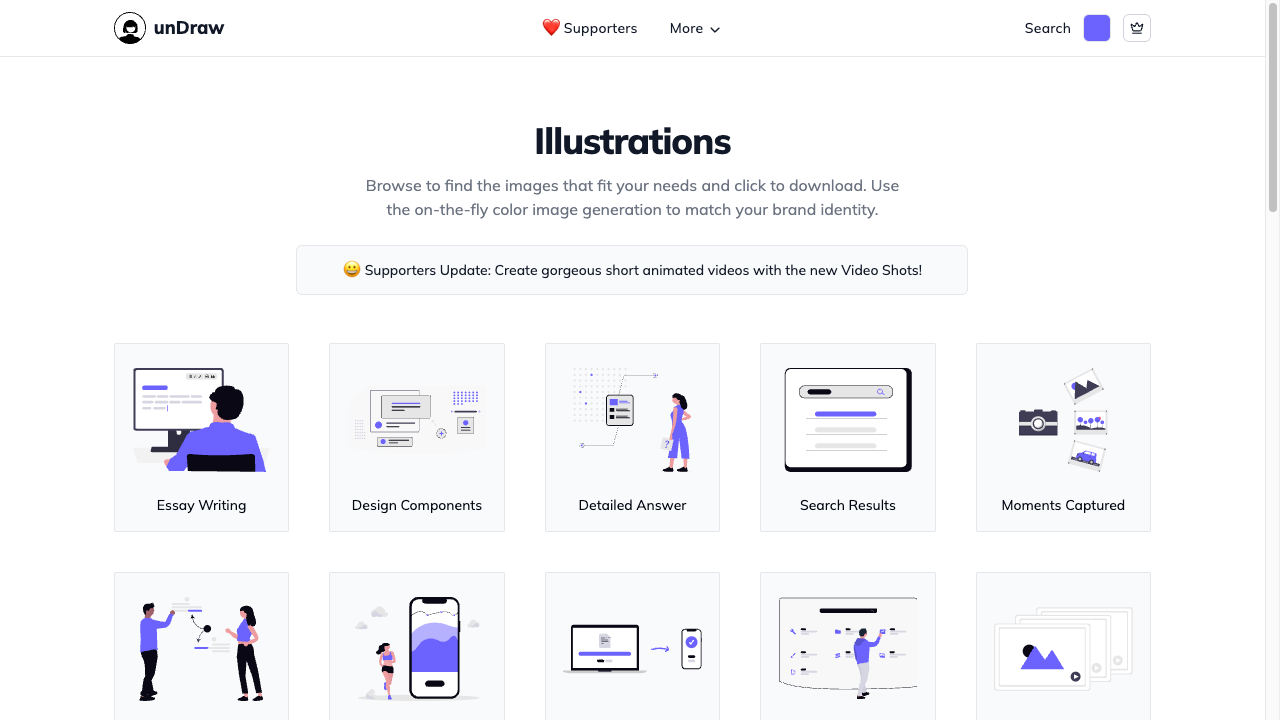
unDraw
A stylish illustration collection where you can freely change the colors.
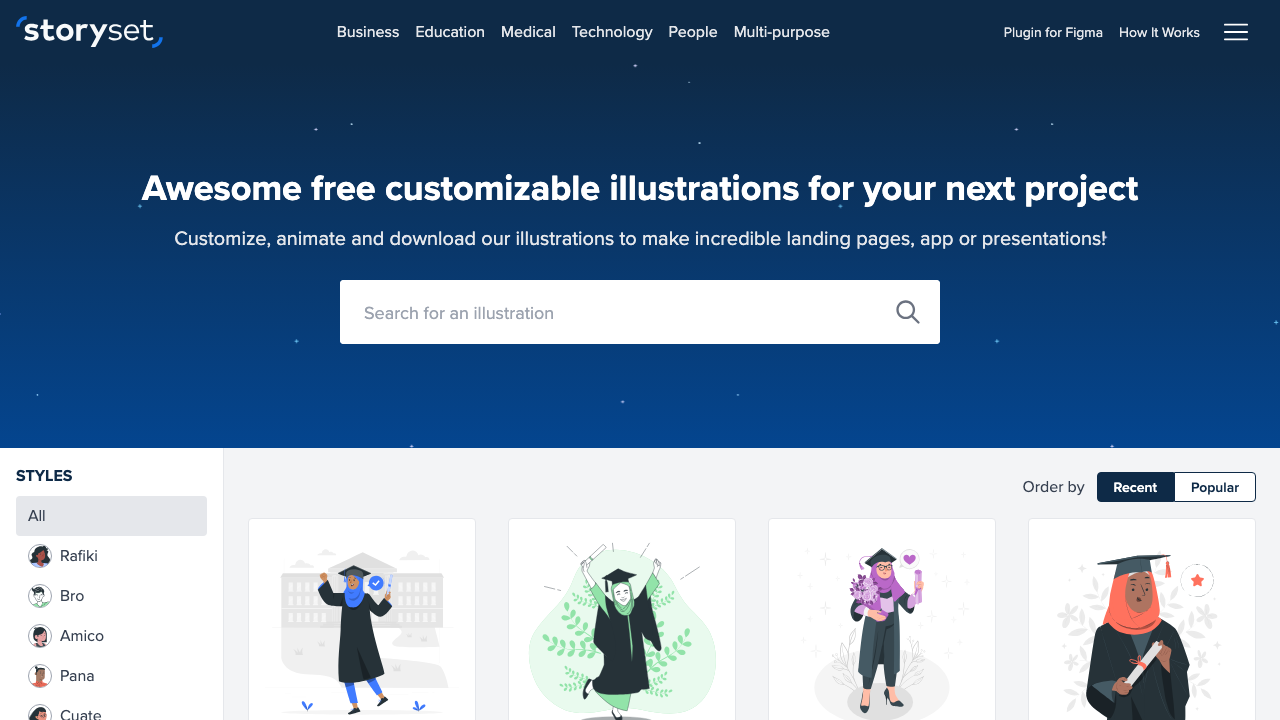
Storyset
A free illustration collection run by Freepik. Illustrations of people are sorted into categories like Business, Education, and Medical, and you can change the color, swap the character’s pose, and even add animation before you download.
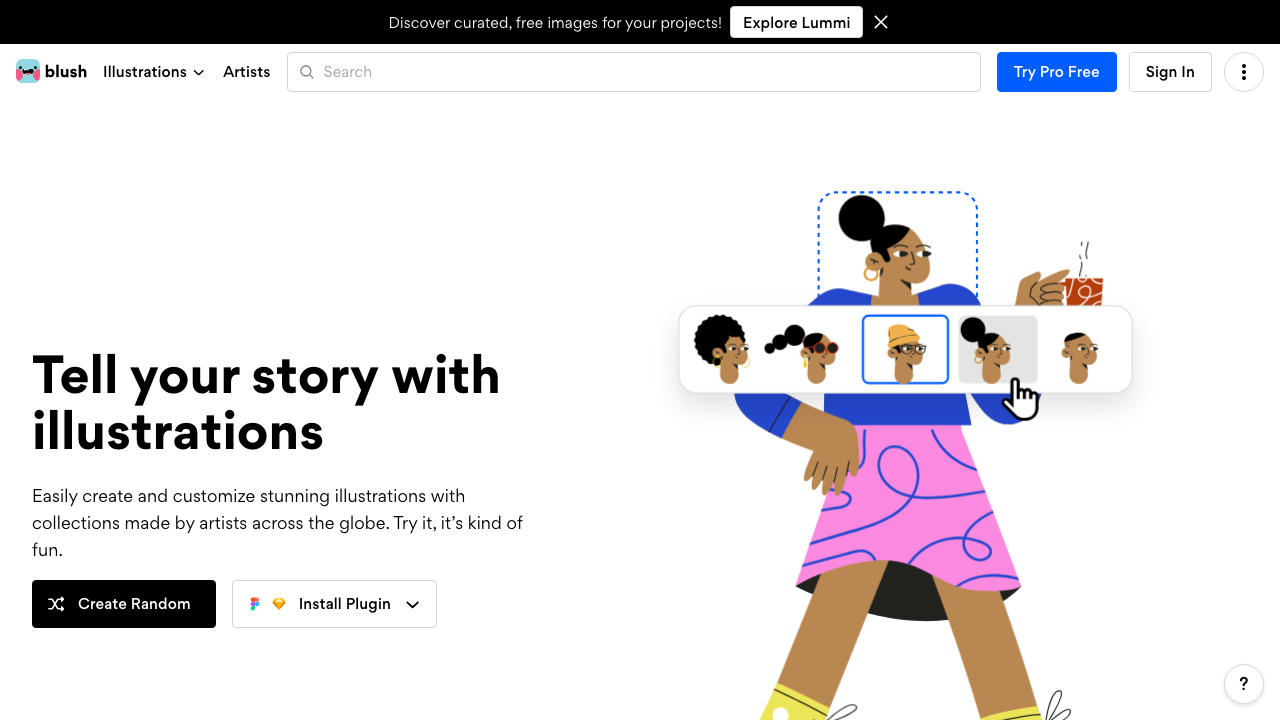
Blush
An illustration service where you mix and match parts to build a picture that’s yours alone. Swap the hair, the outfit, the pose and you get something that doesn’t look like everyone else’s page. There’s a free tier, so you can try it without paying.
Type 2: Photos (for a full-fledged look)
For a large image at the top of a page, or a background, photos shine. High-quality, stylish photos are available for free.
Unsplash
A treasure trove of high-quality, stylish photos. A classic used worldwide.
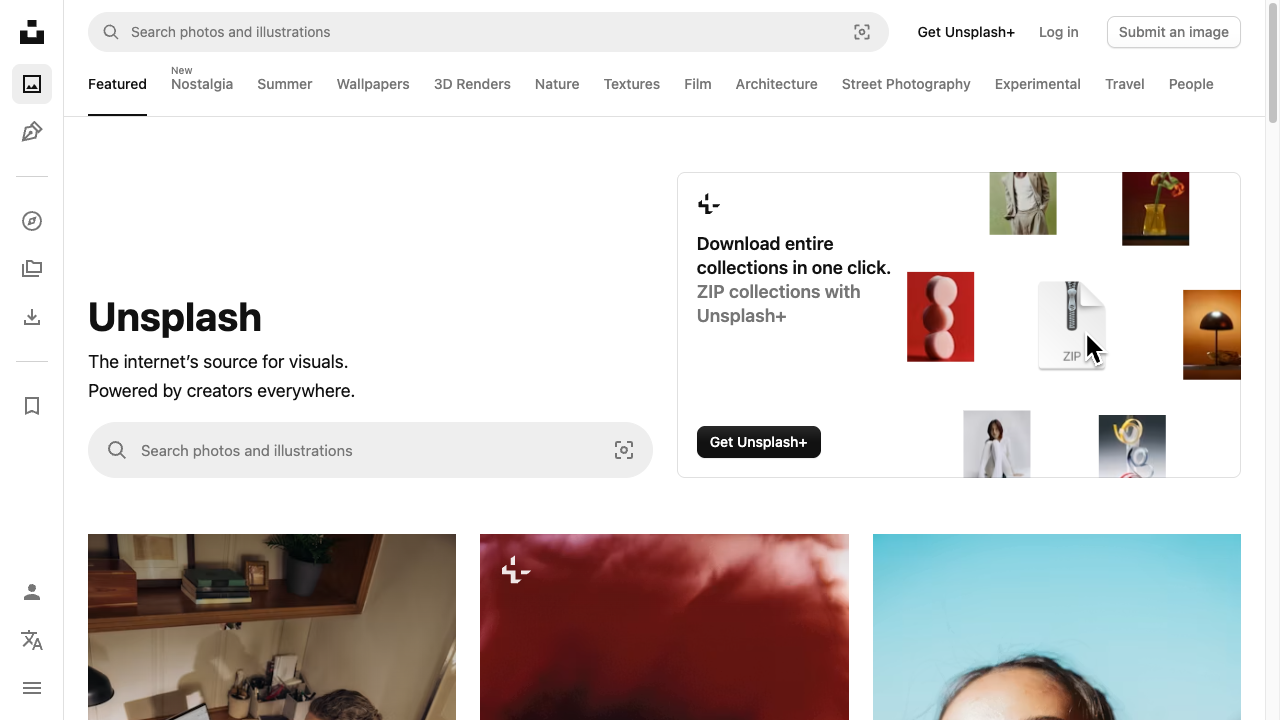
cat, coffee, and so on). Usable with no credit line, though naming the photographer is a nice thing to do.Pexels
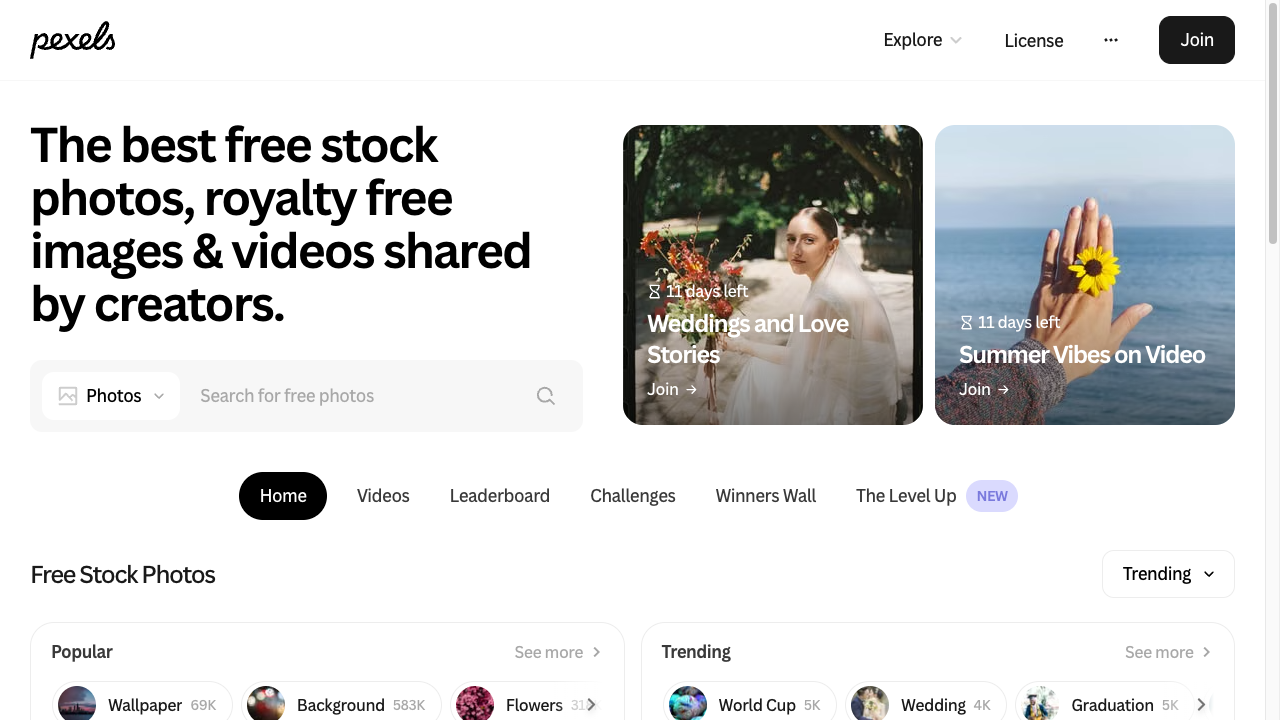
Photos and videos, both free. The video library is the part that sets it apart—handy when you want a moving background.
Pixabay
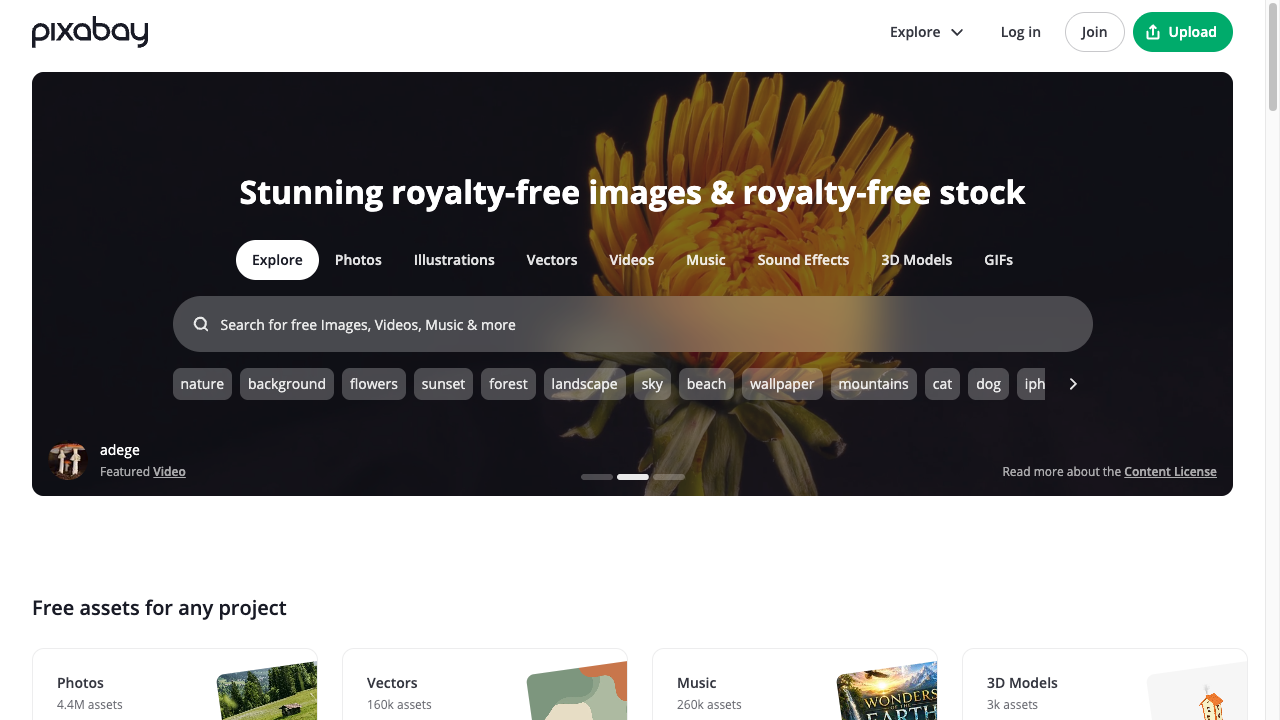
Photos, illustrations, vectors, videos, even music—all in one place. When you want to keep a page’s look consistent, being able to pull everything from a single site is a real advantage.
Type 3: Search many sites at once
When making the rounds of sites one by one is tough, a tool that searches multiple stock sites at once is handy.
O-DAN
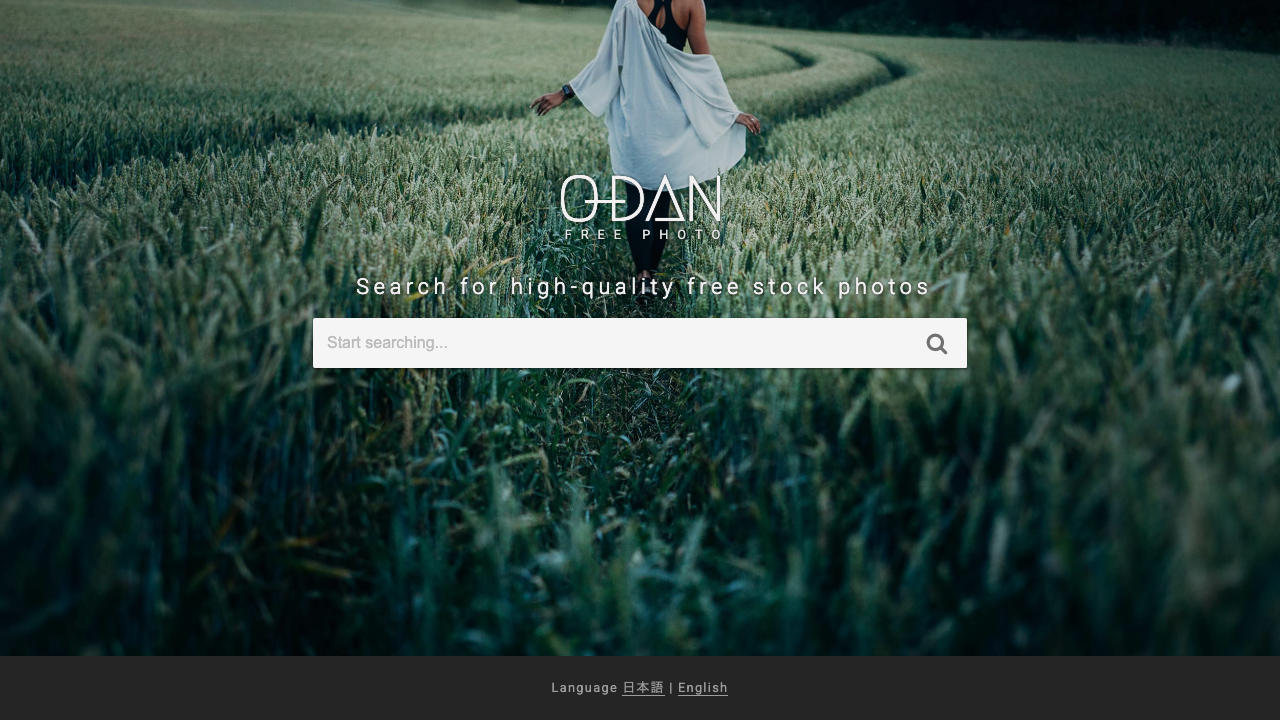
Type a keyword once and it searches a whole set of free-photo sites at the same time.
Watch out when using: check the license
Even if it’s free, the range you’re allowed to use it in (the license) is set by each site. Don’t overthink it—just keep these 3 in a corner of your mind.
| Where to look | What to check |
|---|---|
| Commercial OK? | Can you use it on shop or work pages (for practice only, no need to worry too much) |
| Credit line | Some sites say “please write the author’s name” |
| Editing & redistribution | Can you change colors or crop it |
Many sites are “free, no credit line needed,” but conditions vary by site. Some cap how many items you can download per day on a free account, some ask you to credit the creator, and photos of people often carry extra rules (you usually can’t imply the person endorses something). Before using, take a peek at that site’s “terms of use” or “license” page.
Write the alt attribute specifically
In the alt attribute when you place an image, write not just “illustration” or “photo,” but what the image represents.
<img src="illustration.png" alt="Illustration of a person operating a laptop at a desk">Writing it specifically not only becomes the substitute text when the image can’t load, but also serves as a clue for people with visual impairments to understand the content with screen-reader software. Rather than using the stock site’s filename as-is, add a description in your own words.
AccessibilityWriting alt text that gets acrossHow to write alt text that actually communicates, including what to do in the tricky casesOnce downloaded, lighten it before using
Photo files are often large, and using them as-is makes the page slow to display. Running the image through a tool that lightens it before using is safest.
TinyPNG
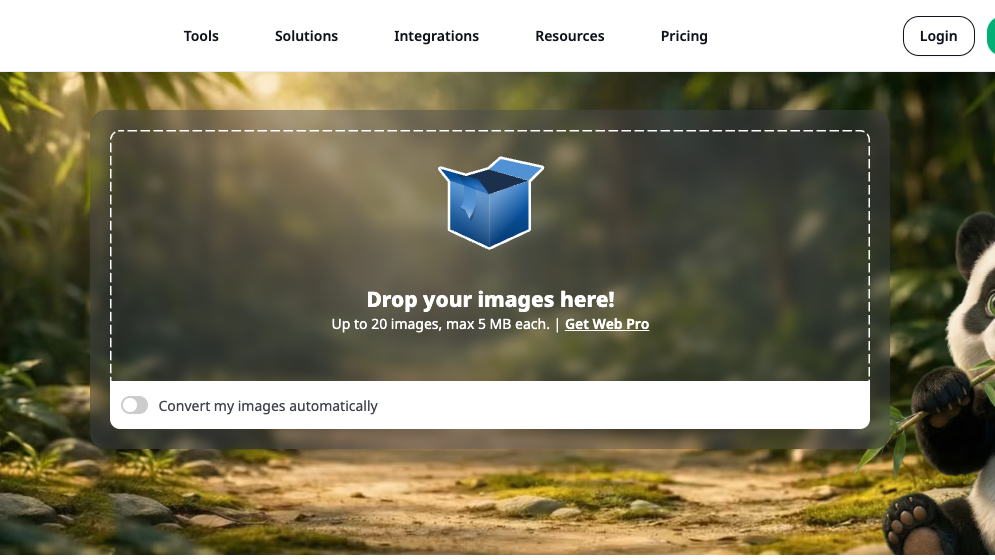
Just drag, and it lightens the file while keeping the look the same.
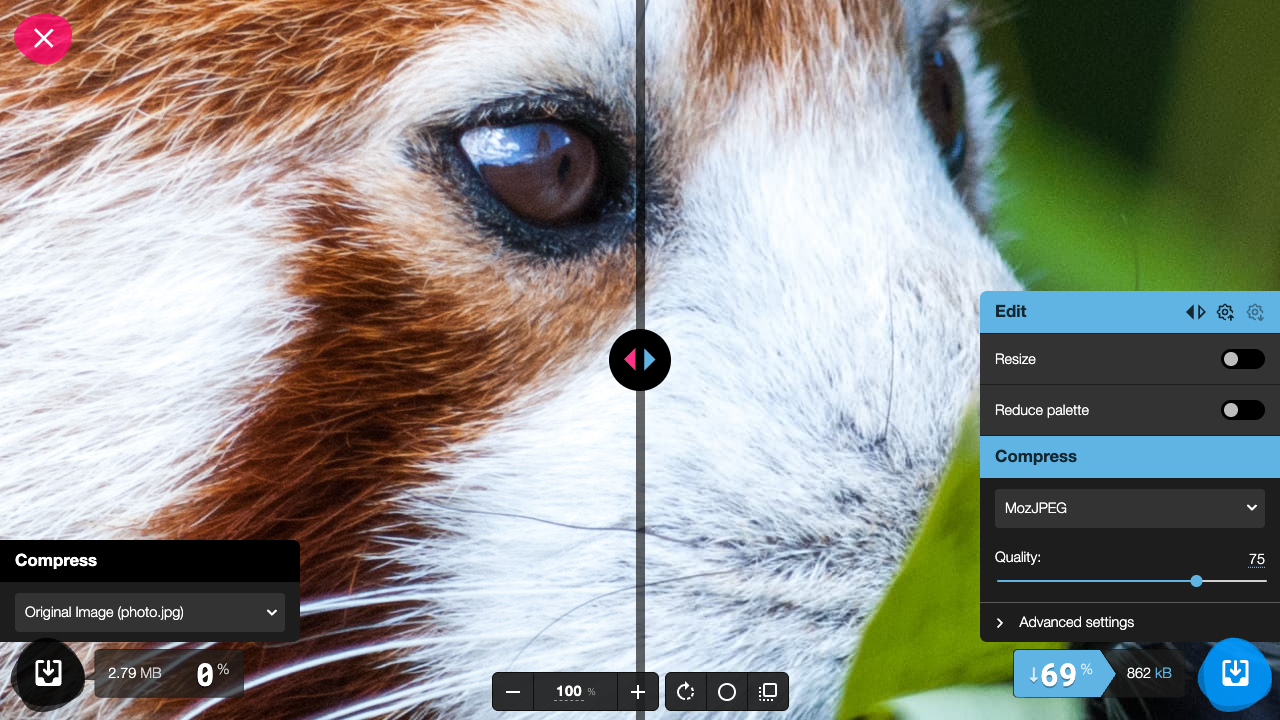
Squoosh
Google’s image compression tool. You can fine-tune too.
Summary
- Choose stock sites by what you want to do—illustrations / photos / search all at once
- When in doubt, start with unDraw (illustrations) and Unsplash (photos)
- Check the license before using, and lighten images before placing them
Just one photo or illustration and your page’s polish jumps up a lot.