
Just adding one icon next to your text makes buttons and menus much easier to understand. Here I introduce free icon asset sites sorted by what you want to do, with screenshots.
TipsFree photo and illustration stock sitesLooking for photo and illustration asset sites? Here.Type 1: Reliable all-around icon collections
These are go-to sites with a huge variety, covering almost any genre.
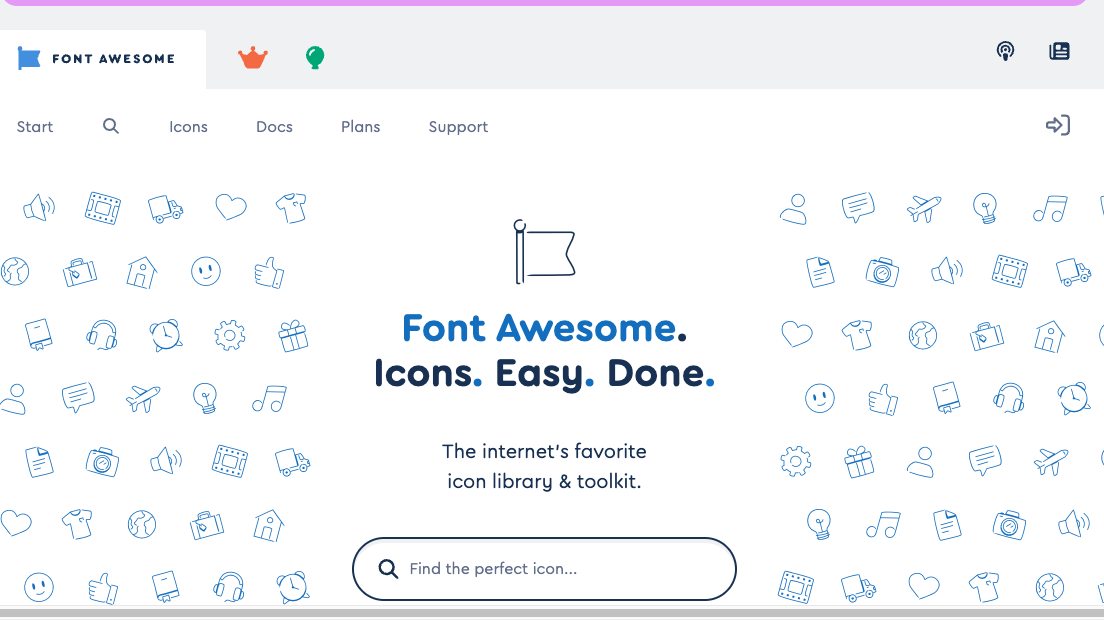
Font Awesome
A worldwide standard in web development. Tens of thousands of icons across every genre, from arrows to social media to tools.
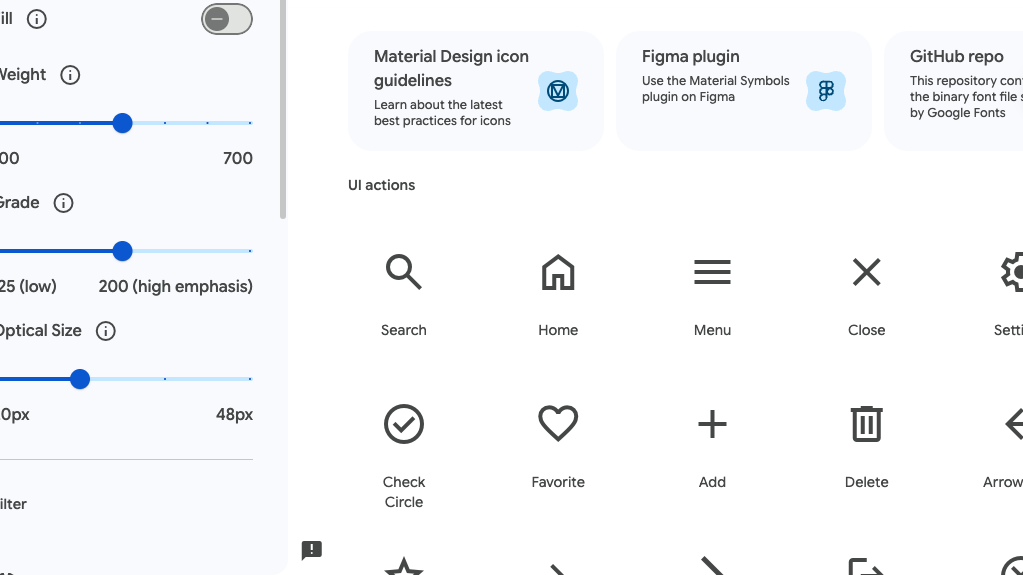
Material Symbols
A set of consistent, simple icons provided by Google.
Type 2: Stylish, design-focused ones
When you want a unified look, icon sets with a single design concept are a good fit.
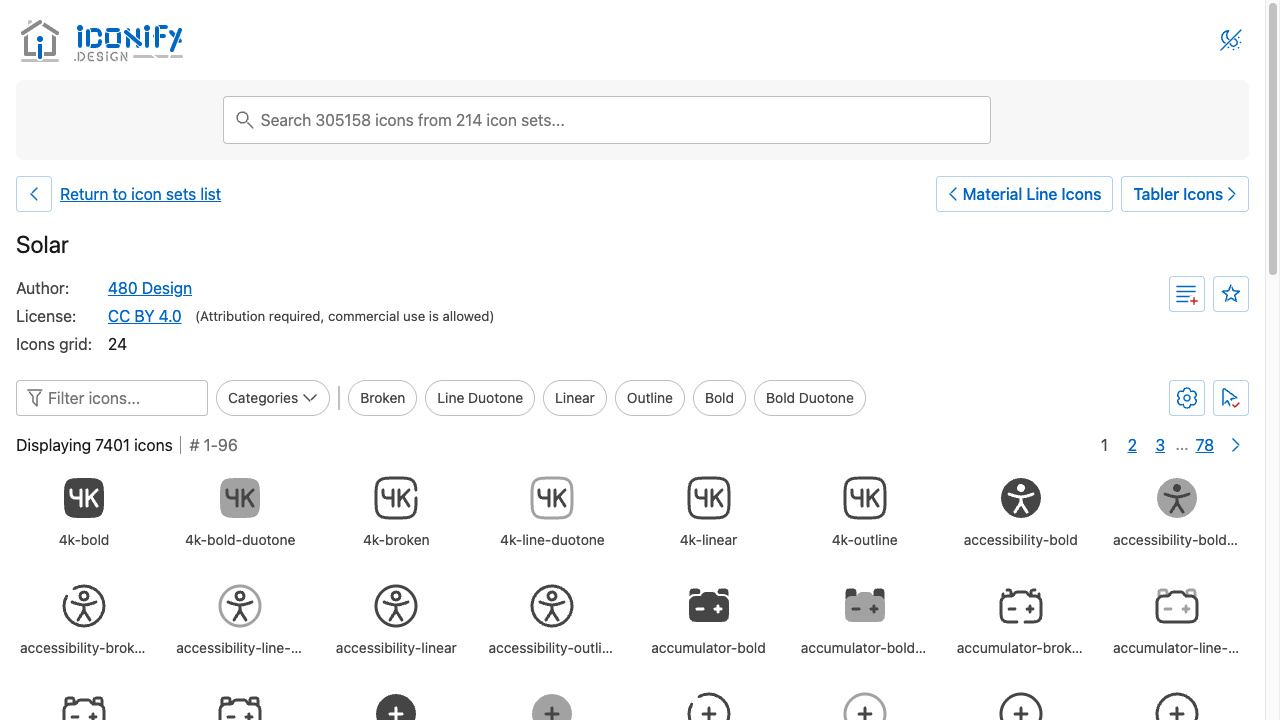
Solar Icons
A modern-feeling set characterized by smooth curves.
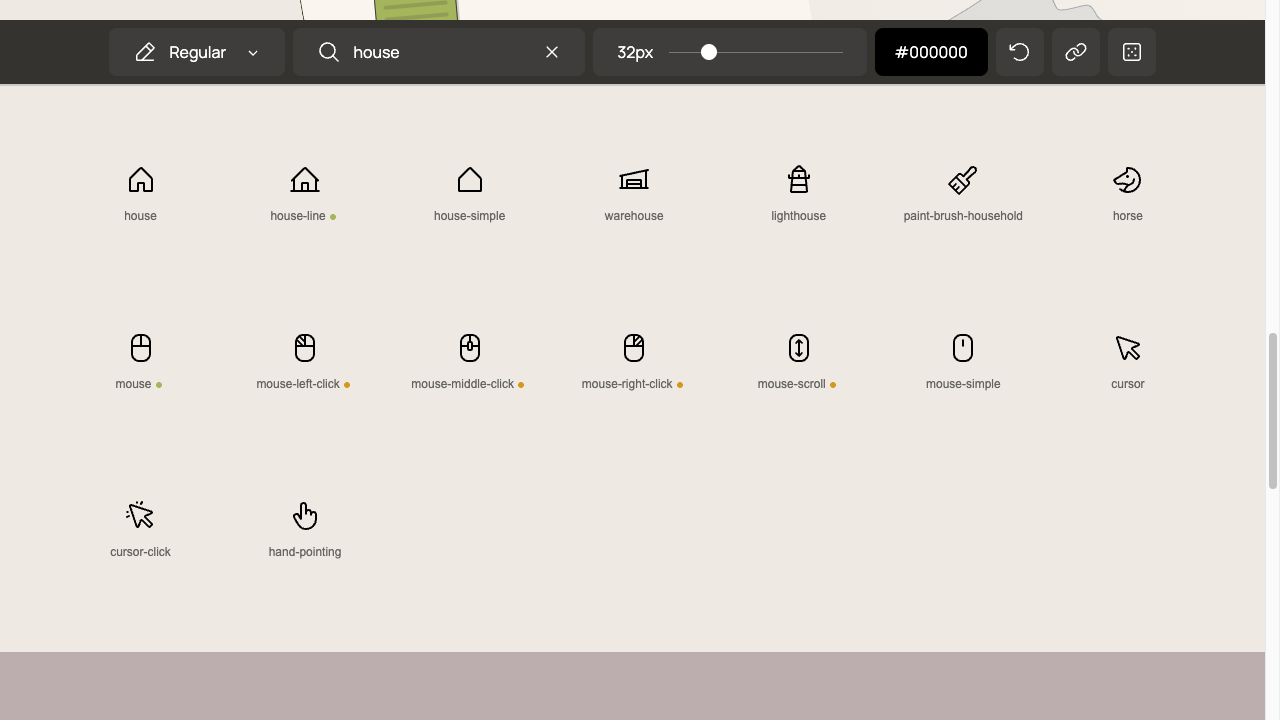
Phosphor Icons
A flexible set where you can pick from six line weights.
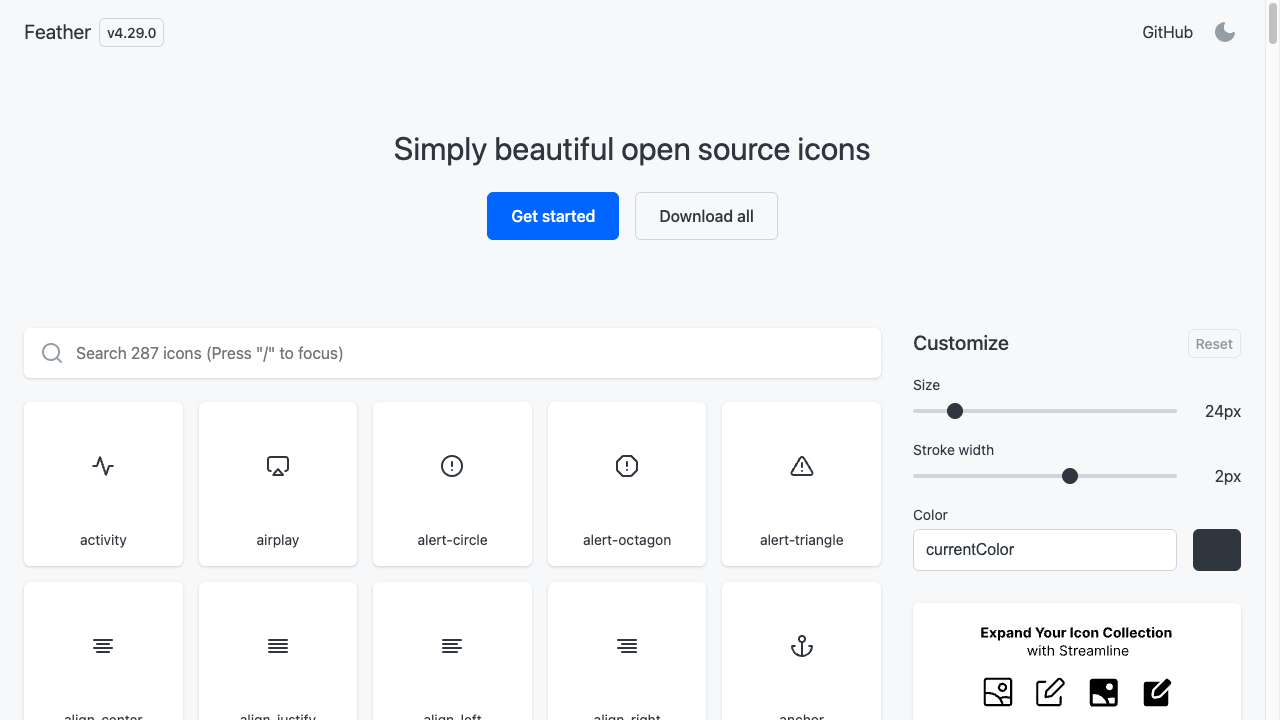
Feather Icons
An icon set drawn with lines only, as simple as it gets.
Type 3: Search across many at once
When you want to search across several icon sets at once, a search site is handy.
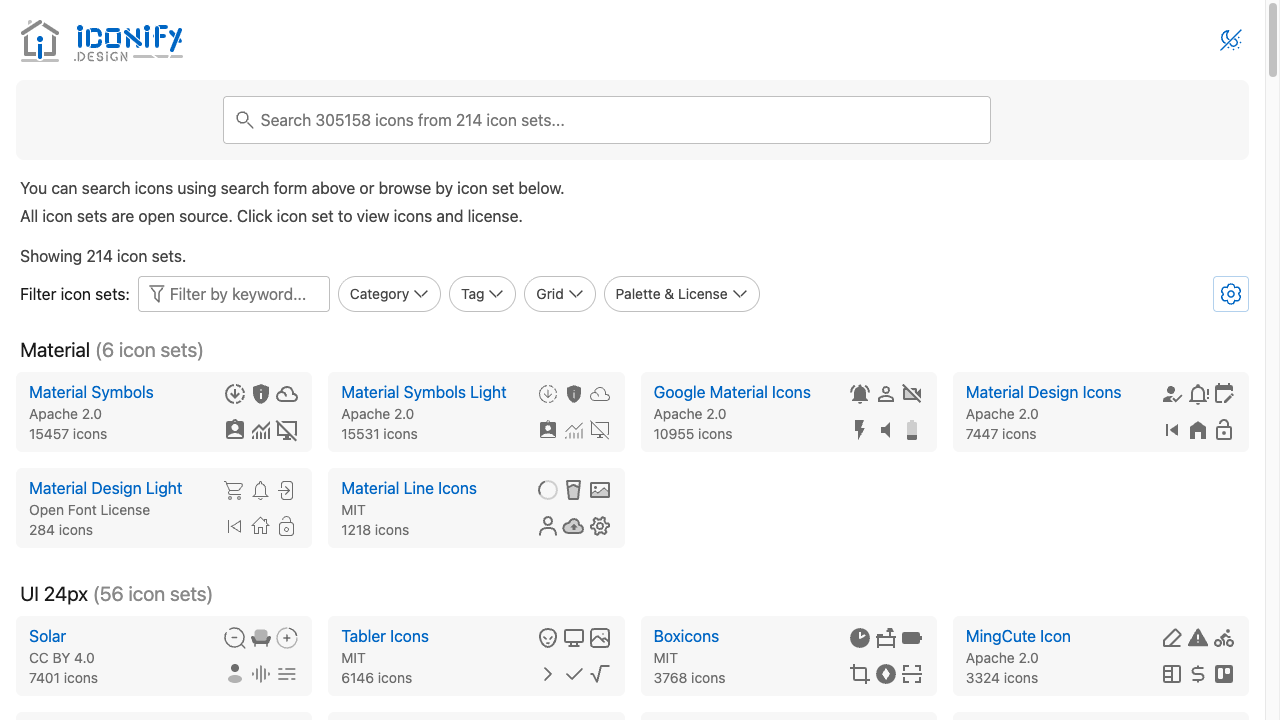
Iconify
Search across 200+ icon sets and 300,000+ icons, including the ones above.
A note when you use them: check the license
Even when they’re free, how far you’re allowed to use them (the license) is decided per site. Keep just these two in a corner of your mind.
| Where to look | What to check |
|---|---|
| Commercial OK? | Can you use it on a shop or work page too? (If you’re just practicing, no need to worry too much.) |
| Credit attribution | Some sites say “please write the author’s name.” |
Free doesn’t mean they’re all the same—whether credit attribution is required differs from one icon set to another. For the ones in this article, here’s how it stands.
| Icon set | License | Credit attribution |
|---|---|---|
| Font Awesome Free | CC BY 4.0 | Required (fine as long as you don’t remove the attribution comment inside the distributed files) |
| Material Symbols | Apache 2.0 | Not required (appreciated if you add it) |
| Solar Icons | CC BY 4.0 | Required |
| Phosphor Icons | MIT | Not required |
| Feather Icons | MIT | Not required |
For practice use, there’s no need to worry too much, but when you use them on a shop or work page, take a peek at that icon set’s “license” page once.
How to use icons: embedding them as SVG
On many icon asset sites you can download or copy icons in a format called SVG. SVG is an image format you can paste straight into HTML just like text, so you can place it on the page without an <img>.
<button>
  <svg viewBox="0 0 24 24" width="20" height="20">
    <path d="…" />
  </svg>
  Save
</button>
Copy the contents from the site’s “Copy SVG” or “Download SVG” button and paste it straight into your HTML to display it. When you want to change the color, adjust it with the SVG’s fill attribute or the CSS color property.
When you want the icon’s color to change automatically to match the text color, setting fill="currentColor" on the SVG is handy. This way, the icon’s color follows the color of the text around it.
button {
  color: #3a3a3a;
}<button>
<svg viewBox="0 0 24 24" width="20" height="20" fill="currentColor">
<path d="…" />
</svg>
Save
</button>Written this way, just changing the button’s text color changes the icon’s color along with it, so you don’t have to write the CSS twice.
Summary
- Choose an icon asset site by what you want to do: all-around / design-focused / search-across-many
- If you can’t decide, start with Font Awesome or Material Symbols
- Check the license before using, and paste it in as SVG
Just having one icon makes the meaning of a button or menu much easier to grasp at a glance.