
Tips・Browser dev tools

Chrome extensions that make research faster

Extensions that let you check a site's colors, fonts, and spacing values with just a click or a mouseover. Once you're comfortable with DevTools, here are 6 classics worth adding, each shown with a screenshot.

When you want to check a site’s colors or fonts, there’s a faster way than chasing CSS in DevTools: Chrome extensions. With just a click or a mouseover, you can find out colors, font names, and sizes. Here are 6 classics, introduced by what you want to do, each with a screenshot.

TipsGetting started with developer toolsNot sure what DevTools even is? Start here first

Type 1: Look up one specific piece of information

“I just want to know this color,” “I just want to know this font name”—when your goal is clear, a dedicated extension is the fastest.

ColorZilla

An eyedropper extension that grabs the color code of anywhere on the page with just a click.
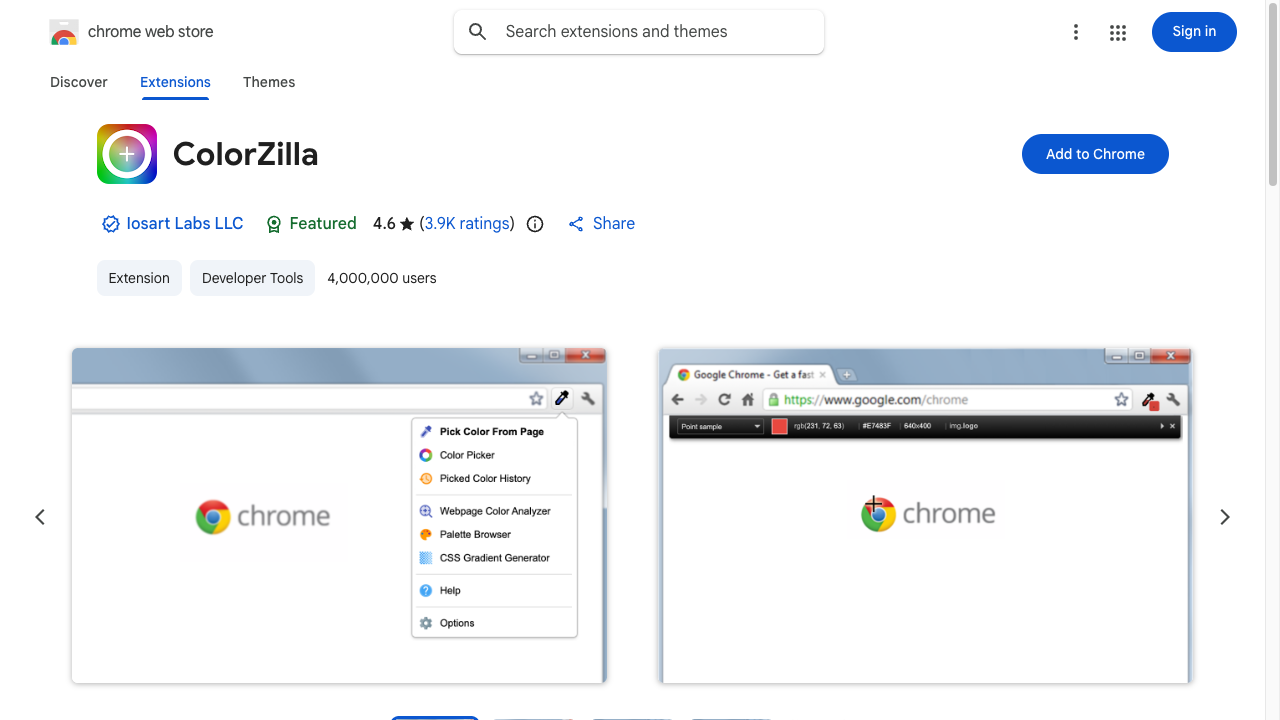
ColorZilla’s Chrome Web Store page. The extension’s icon and description sit next to a blue “Add to Chrome” button
Copy the background color of a site you like, or the color of a button, just by clicking it with the eyedropper. Handy for research when you’re unsure about a color scheme.

ColorZilla

TipsColor-scheme sites so you never agonize over colorTo build a color scheme from the color you picked up, take a look at color-palette sites too

WhatFont

An extension that tells you the font name in use just by hovering over the text.
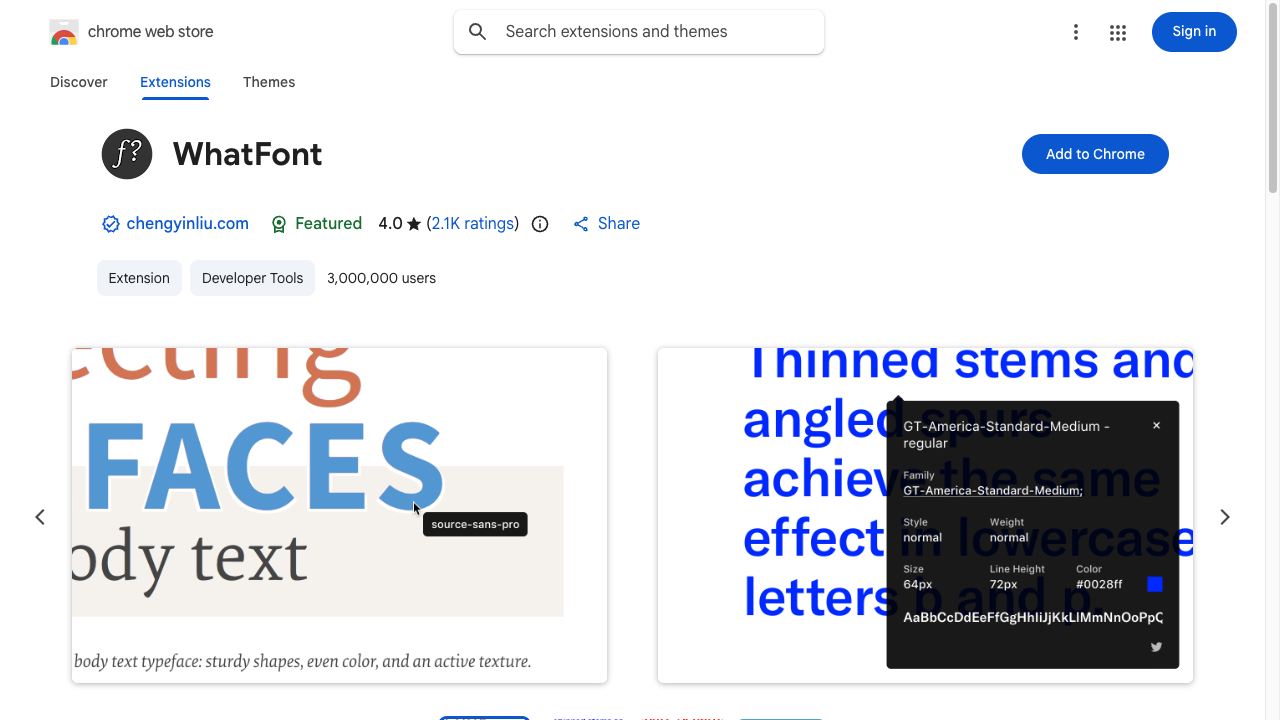
WhatFont’s Chrome Web Store page. The extension’s icon and description sit next to a blue “Add to Chrome” button
“What font is this heading on this site?” is answered with a single click.

WhatFont

Page Ruler

An extension that measures width and height in pixels just by dragging over any area of the page.
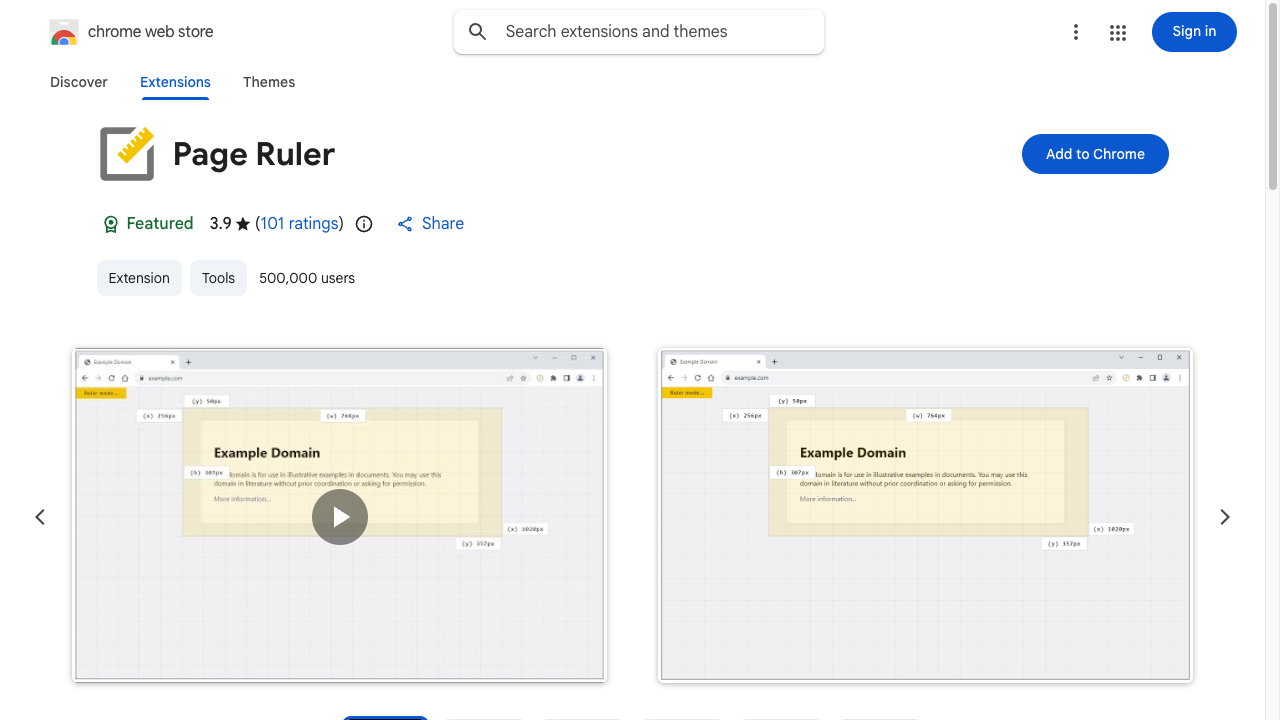
Page Ruler’s Chrome Web Store page. The extension’s icon and description sit next to a blue “Add to Chrome” button
“About how many px is this button?” can be checked directly with the numbers of the area you dragged.

Page Ruler

Type 2: Check everything at once, or touch and try it out

“I want to know this whole design at once,” “I want to tweak the numbers and see”—for these, the extensions below are a better fit.

CSS Peeper

Color, font, spacing, corner radius… an extension that tells you a design’s values all at once just by clicking an element. Handy when you want to grasp the whole picture first, rather than using ColorZilla and WhatFont one at a time.
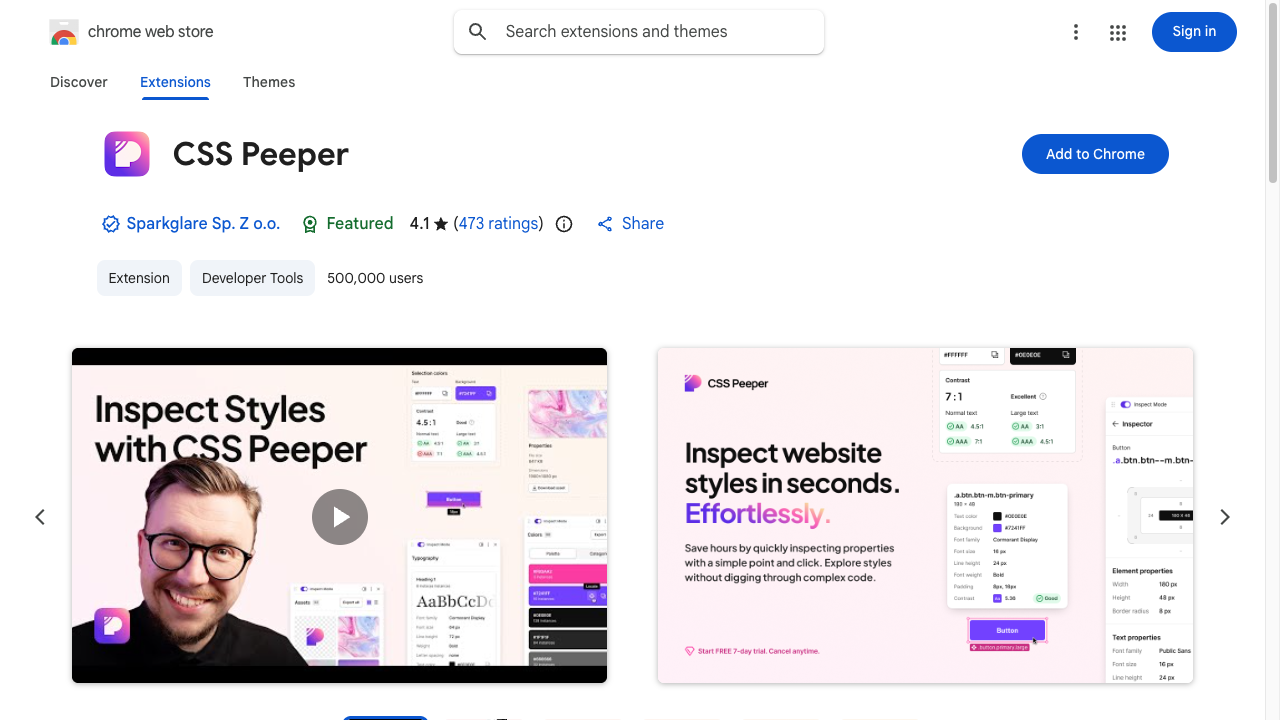
CSS Peeper’s Chrome Web Store page. The extension’s icon and description sit next to a blue “Add to Chrome” button
Click the part you’re curious about, and the color, font, size, and spacing all come up together. You get the whole “so this is what this design looks like in numbers” at a glance.

CSS Peeper

VisBug

A Google-made extension. Right on top of the page, you can drag elements around and change spacing or font size on the spot—DevTools you can touch.
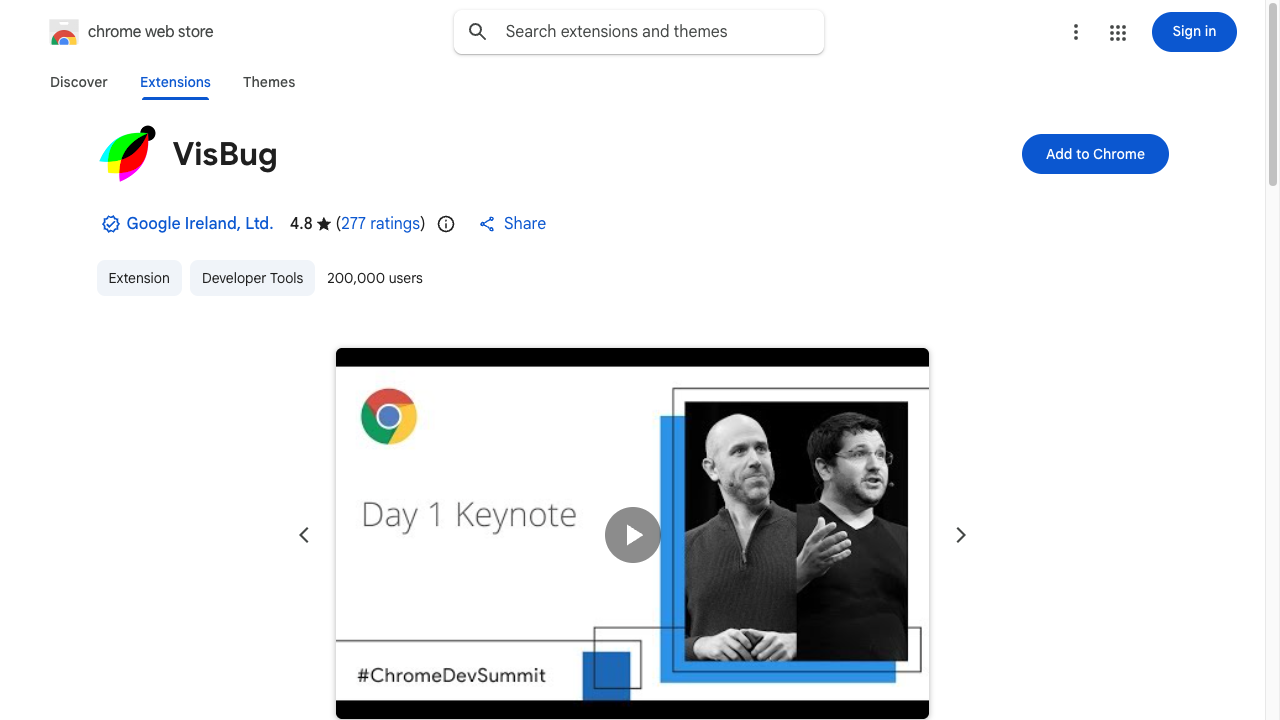
VisBug’s Chrome Web Store page. The extension’s icon and description sit next to a blue “Add to Chrome” button
Without writing code, you can grab things and move them around to try ideas out. The fun part is being able to check “what if I widened this spacing a bit more?” purely by feel.

VisBug

Type 3: Learn what’s behind a site

Wappalyzer

An extension that tells you what a site is built with. The frameworks and tools it uses show up at a glance in a list of icons.
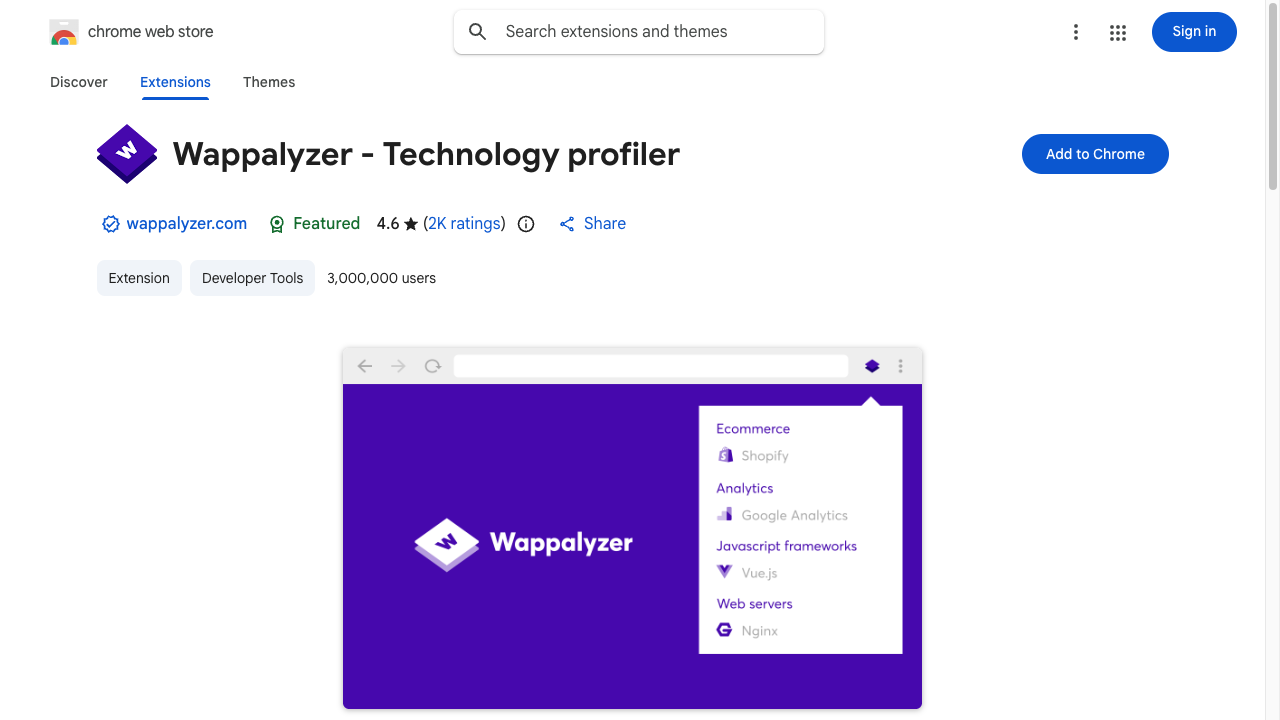
Wappalyzer’s Chrome Web Store page. The extension’s icon and description sit next to a blue “Add to Chrome” button
It answers the simple curiosity of “what was this site made with?” Try it on a well-known site and you might make a surprising discovery.

Wappalyzer

Summary

  1. Use ColorZilla for colors, WhatFont for fonts, and Page Ruler for sizes when you want to look up one specific thing
  2. To know a whole design at once, use CSS Peeper; to touch and try it out, use VisBug
  3. Curious about a site’s tech stack? Wappalyzer
  4. Don’t overdo it—add them one at a time as you get curious

Once you can capture the “nice” bits of your favorite sites as numbers, it gets much easier to bring them into your own pages.

FAQ

Will installing too many extensions slow down the page?
If you install several extensions that run all the time, there will be some impact. We recommend first getting comfortable with DevTools itself, then adding extensions one at a time as you find you need them.
Are the extensions you introduce free to use?
All 6 introduced here can be used for free. Some also offer paid versions with more features, but for checking colors and fonts, the free version is more than enough.
Can I use them on browsers other than Chrome?
Microsoft Edge works the same way as Chrome, so you can add them straight from the Chrome Web Store. Firefox uses a different store, so you'll need to look for an extension with the same name there.
What if an extension isn't working?
Extensions only work on normal web pages. They won't respond on the browser's settings screen or the new tab page, so try them with an actual site open.