
WordPress has over 60,000 plugins, and just choosing is exhausting. This article covers thirteen, organized by purpose, along with how to judge them. If you’re installing anything first, make it three kinds: SEO, security and backups—their jobs are different, so they don’t overlap.
Four things to check when choosing
You can judge almost everything from the information in the sidebar of a plugin’s page.
- Active installations—10,000 or more means a solid track record. Few installs also means little information available
- Last updated—avoid anything over a year old (it may not work, and vulnerabilities may be sitting unfixed)
- Tested up to—is the “tested up to” version close to your WordPress?
- Reviews and unresolved support threads—look at whether people get replies, not just the star count
The three to install first
Yoast SEO
The most established SEO plugin. It handles titles, meta descriptions, OG tags and XML sitemaps, and it points out issues as you write. It’s feature-rich, so if you find it heavy, the lighter The SEO Framework covers the same essentials with far fewer settings.
TipsSet up OGP (how it looks when shared)How OG tags work (what your page looks like when shared)Limit Login Attempts Reload
Protection for the login screen. It caps failed login attempts and locks out the source, which effectively stops the automated brute-force attacks that make up most attempts on a WordPress site. It’s light, and there’s essentially nothing to configure. If you want broader coverage—firewall, malware scanning—Wordfence Security is the standard next step, though it’s correspondingly heavier.
TipsWhat to do when you can't log in to WordPressHow to get back in when you can’t reach the login screenUpdraftPlus
The standard for backups. Beyond manual backups, it handles scheduled automatic ones and storage on Google Drive or Dropbox. Restoring runs from the admin screen too, which is a very different feeling when something goes wrong.
Building a contact form
Contact Form 7
The most widely used form plugin. Paste a shortcode into a static page and you have a form. There are enormous numbers of guides and customization examples, and “when you’re stuck, searching finds an answer” is its greatest strength.
Making the site faster
LiteSpeed Cache
Caching and optimization in one plugin. It comes into its own on LiteSpeed servers, but even elsewhere you get image lazy loading and CSS/JS optimization. Only ever install one caching plugin—several will interfere.
EWWW Image Optimizer
Lightens the images you’ve already uploaded, in bulk. On top of compressing new uploads automatically, it can optimize your existing library all at once, and it handles WebP conversion. It’s the biggest win on a site that’s slow because its images are heavy.
Helping with writing
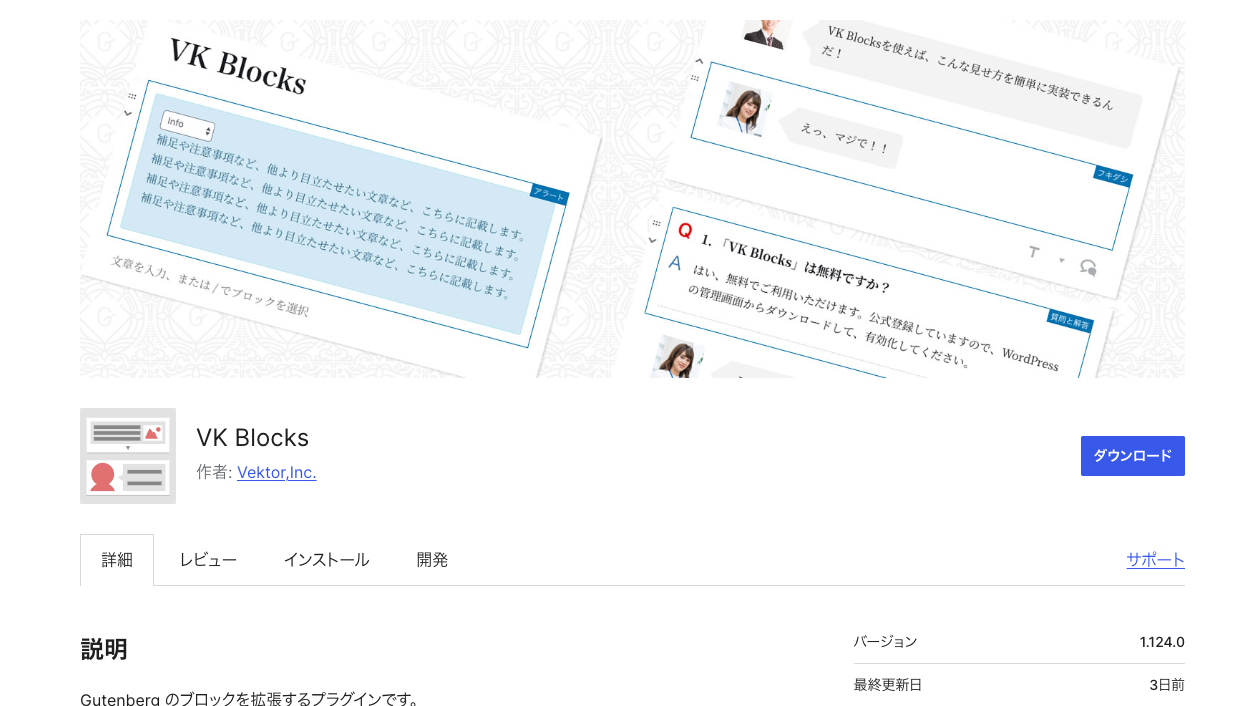
VK Blocks
Adds blocks to the block editor. Speech bubbles, FAQs, buttons, boxes with icons—the components you find yourself wanting while writing. It suits people who’d rather not write CSS to get a tidy look.
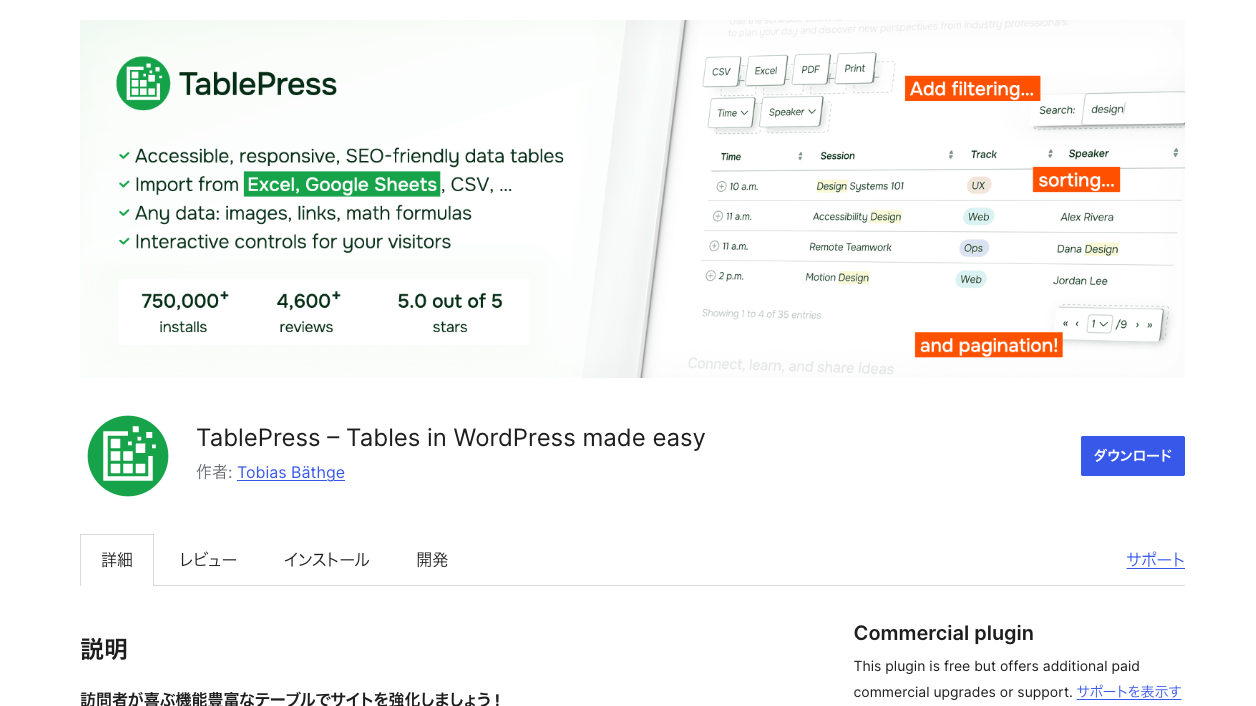
TablePress
Build tables in the admin screen and paste them in with a shortcode. Rows and columns are editable without writing HTML, which makes pricing and comparison tables easy to hand over. Horizontal scrolling on phones is a setting too.
Building the site’s structure (for builders)
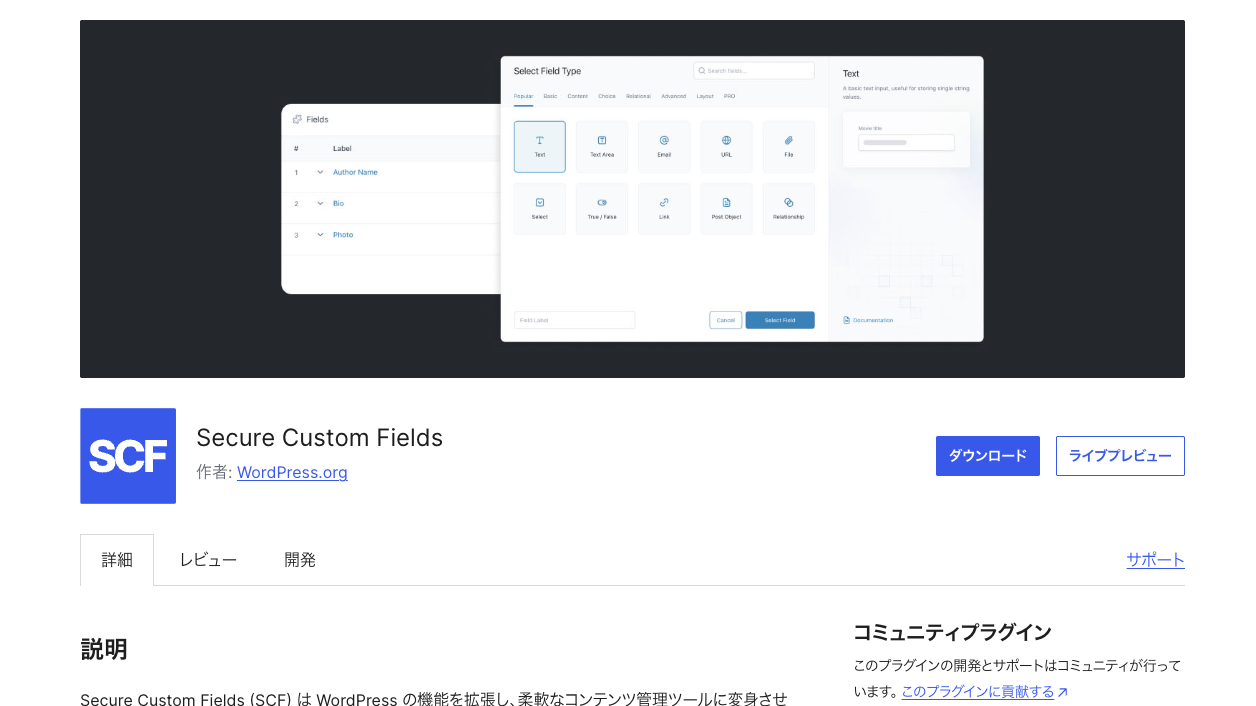
Secure Custom Fields
The standard for custom fields (the plugin distributed officially as the successor slot to ACF). Add input fields for price, address, date and so on from the admin screen, with advanced features like repeater fields available for free.
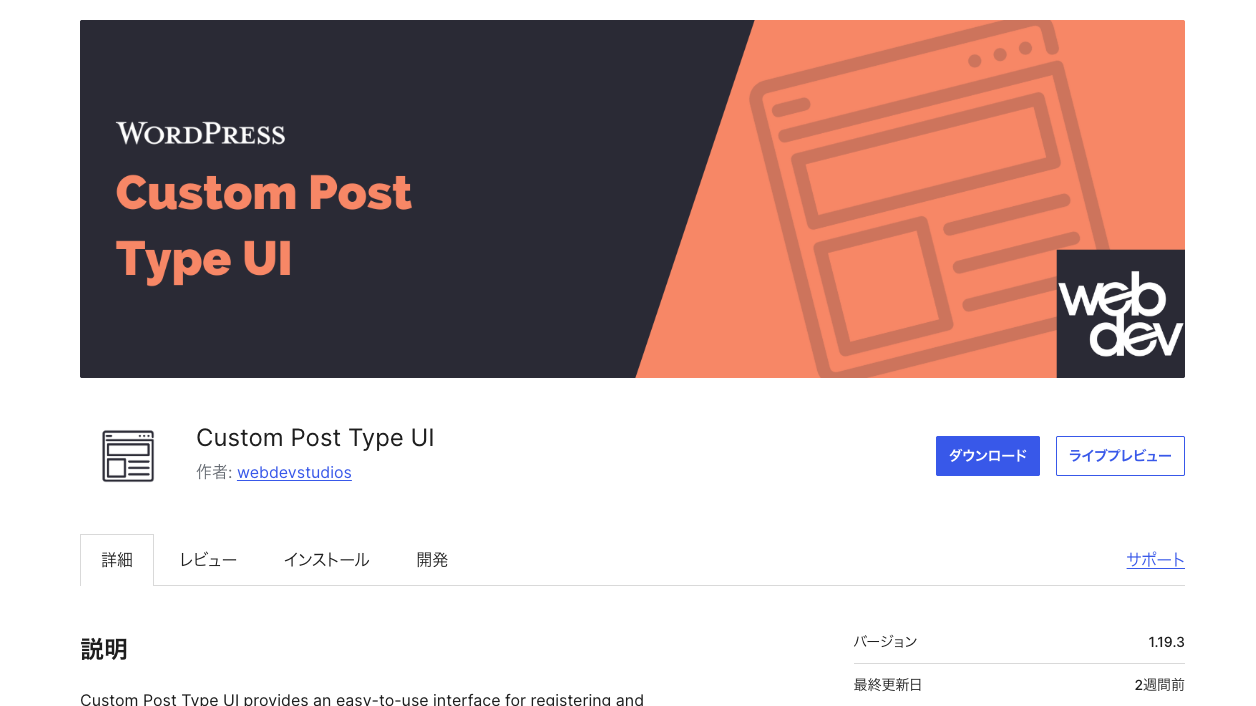
Custom Post Type UI
Create custom post types and taxonomies from the admin screen. Add content types like “Products” and “Case studies” without writing code. It can also export your settings as code, so you can move them into a theme later.
Managing URLs and migrations
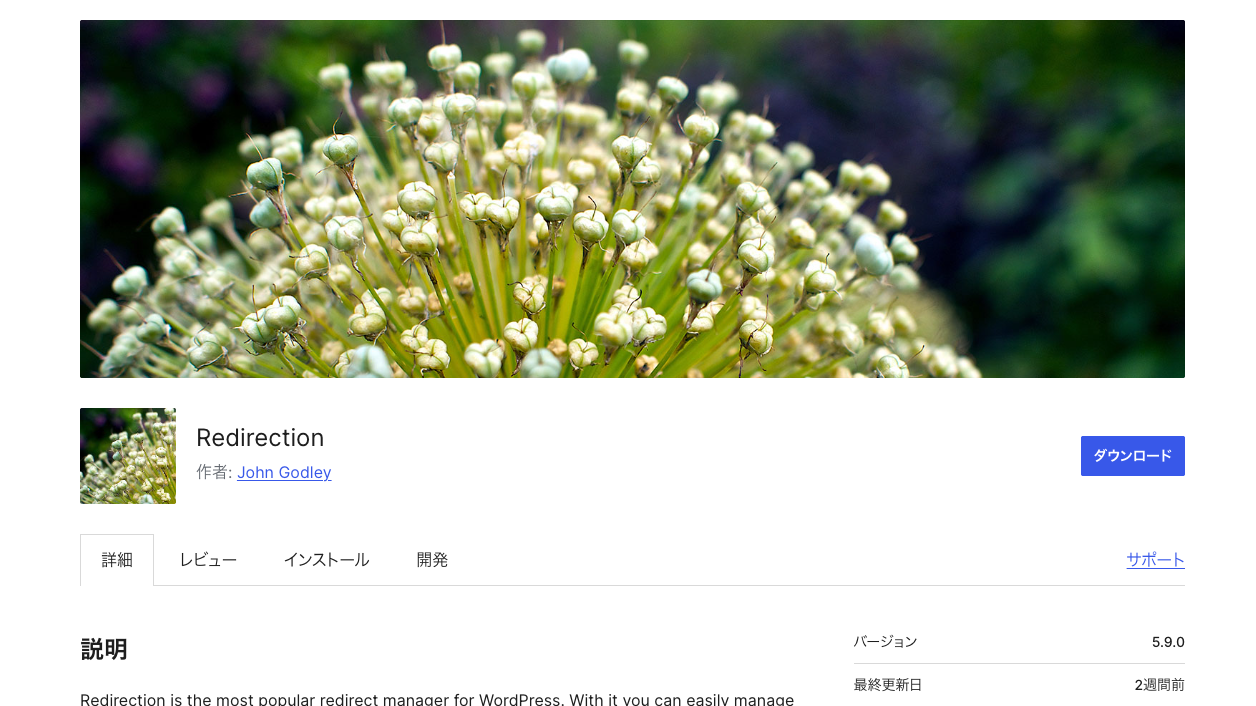
Redirection
Set up forwarding from old URLs to new ones from the admin screen. When you change an article’s URL or relaunch a site, you carry people across without 404s. It also logs the 404s that do happen, so you can find the links worth fixing.
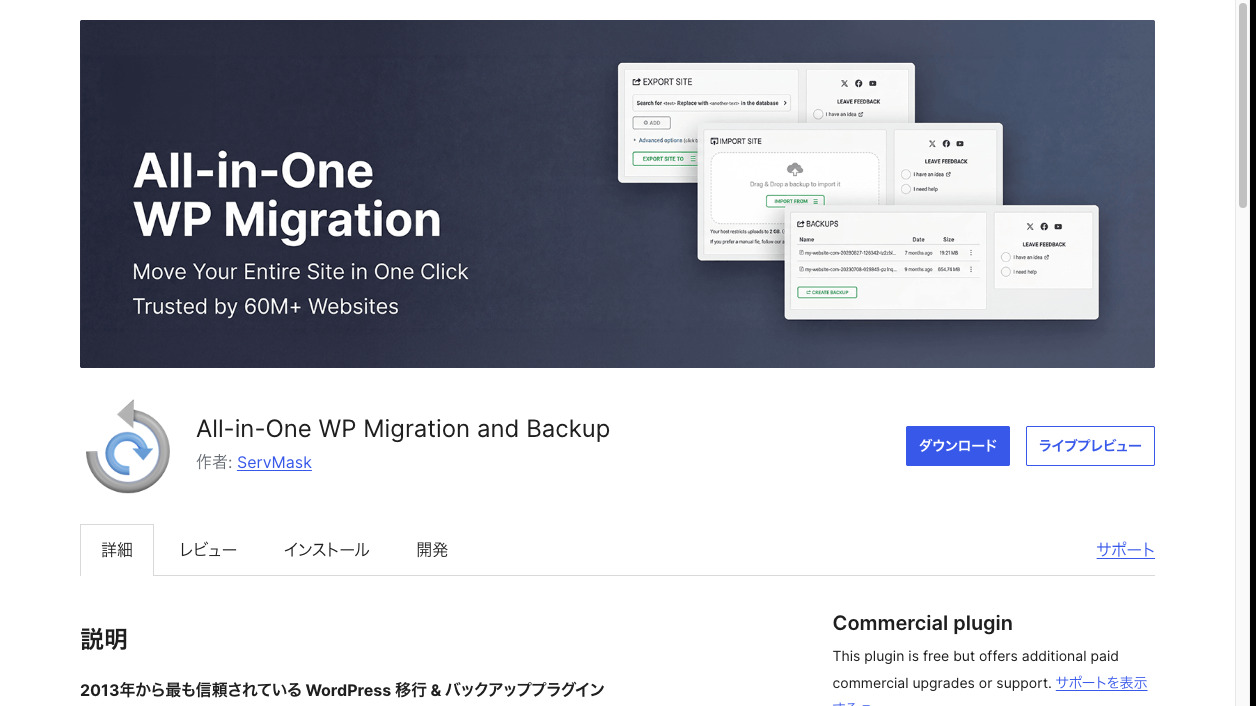
All-in-One WP Migration
Export a whole site and restore it on another server. Moving a site built locally to production, or duplicating a test environment, comes down to passing a single file around.
For development and investigation
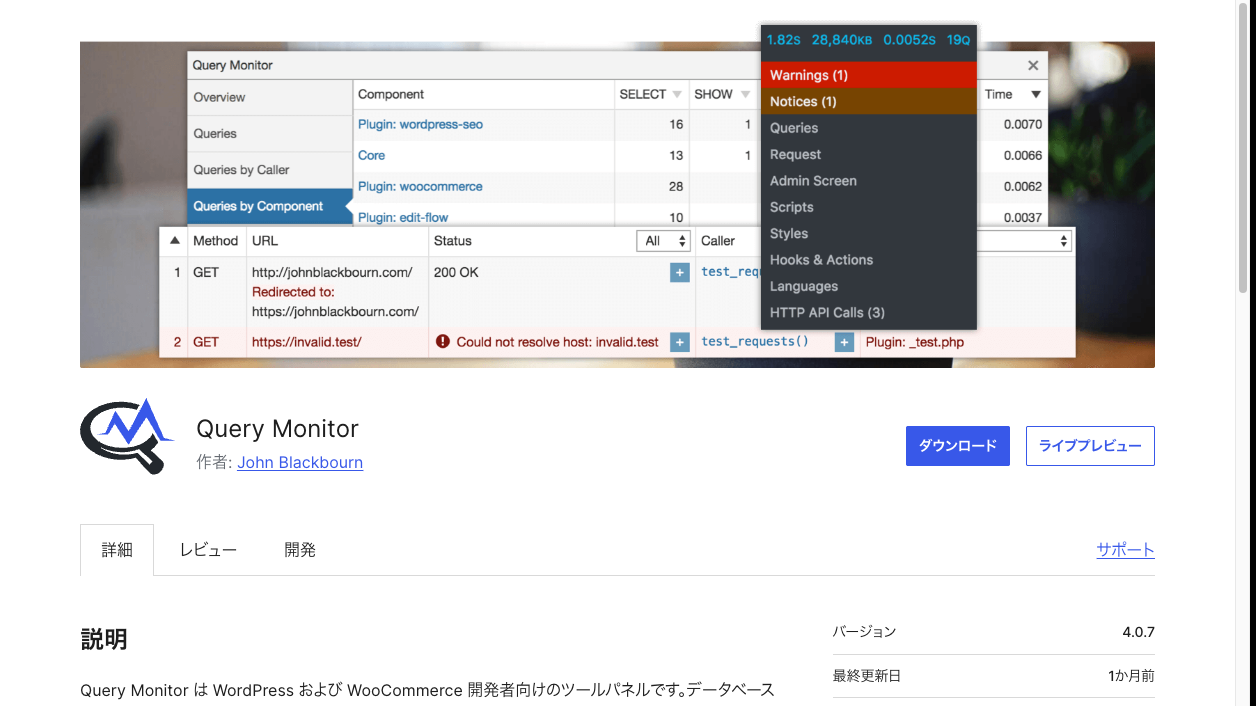
Query Monitor
A developer plugin that shows the SQL that ran, the template used and a list of hooks in the admin bar. It lets you narrow down “why is this slow?” and “which plugin is responsible?” with actual numbers. On a live site, it’s safer to enable it only while investigating rather than leaving it on.
Summary table by purpose
| Purpose | Plugin | In a word |
|---|---|---|
| SEO basics | Yoast SEO | The established standard |
| Protecting logins | Limit Login Attempts Reload | Light, almost nothing to configure |
| Backups | UpdraftPlus | Scheduled plus off-server storage |
| Contact forms | Contact Form 7 | Unbeatable amount of information |
| Caching | LiteSpeed Cache | Install only one |
| Lightening images | EWWW Image Optimizer | Existing images in bulk too |
| More blocks | VK Blocks | A tidy look without CSS |
| Tables | TablePress | Easy to hand over |
| More input fields | Secure Custom Fields | Near-essential for client work |
| Post types | Custom Post Type UI | Try it without code |
| URL forwarding | Redirection | Leaves no 404s behind |
| Site migration | All-in-One WP Migration | Moves in a single file |
| Investigating causes | Query Monitor | Enable only when you need it |
What you don’t need, and what to watch
- A dedicated sitemap plugin—modern WordPress outputs an XML sitemap by default (and SEO plugins can replace it)
- A second caching plugin—they interfere and produce bugs nobody can trace
- Feature-packed “all-in-one” plugins—convenient, but they load features you don’t use and get heavy
- Plugins that have stopped being updated—if the last update was over a year ago, look elsewhere
Summary
- Install SEO, security and backups first—three different jobs, so no overlap
- Judge on four things: active installations, last updated, tested-up-to version, reviews
- Don’t stack two plugins with the same job (caching especially). Delete what you don’t use
- For client work, custom fields and post types matter; for running a site, redirects and migration do
Add things in the order you actually need them and you keep a site that’s light and hard to break.