
The terminal’s black screen isn’t just “the way it is”—it’s a place you can remodel to your own taste. In this article, we’ll cover three classic customizations—putting an emoticon at the start of your input line (the prompt), adding color, and shortening long commands—plus three recommended terminal apps that change your world once you switch. The settings are explained for zsh, the standard shell on Mac.
Put an emoticon in your prompt
The prompt is what appears at the start of the line when the terminal is waiting for input. Normally it’s a businesslike display like username@computer-name folder-name %, but this can be freely changed with a setting called PROMPT.
First, open .zshrc in an editor. If you have VSCode, type this into the terminal.
code ~/.zshrcIf the code command isn’t available, you can also open it in Mac’s standard TextEdit with open -e ~/.zshrc (if you get an error that the file doesn’t exist, create it with touch ~/.zshrc and open it again).
Add this one line at the very bottom of the opened file and save.
PROMPT='(・Θ・)ノ %~ %# '%~ is “the folder you’re in now,” and %# is a symbol that’s usually %, and only changes to # when you have administrator privileges (so you can tell at a glance whether you’re operating as admin by mistake). Once saved, reload the settings.
source ~/.zshrcNow your input line looks like this.
(・Θ・)ノ ~/Desktop % An emoticon waiting for you every time you open the terminal. It’s a small thing, but the black screen suddenly becomes your own place. Feel free to change whatever’s inside the ' quotes.
PROMPT='🐥 %~ $ '
PROMPT='ヽ(´ー`)ノ %~ > 'Add color to your prompt
You can change not just the characters but the color too. Everything from %F{color-name} to %f becomes colored.
PROMPT='%F{yellow}(・Θ・)ノ%f %F{cyan}%~%f %# 'Usable color names include red, green, yellow, blue, magenta, and cyan. Coloring parts separately—the emoticon yellow, the folder name cyan—makes a practical prompt where you can tell at a glance where you are right now.
Why does just writing in .zshrc work?
Mac’s standard shell has been zsh since macOS Catalina in 2019 (before that, bash was standard). zsh is built to automatically read .zshrc every time you open a new terminal, so once you write something, it stays in effect from then on. If you’re still using bash, writing the same content into a file called .bash_profile makes it work the same way.
Shorten commands you use often (alias)
Long commands you type every time can be shortened with an alias. This, too, is just written into .zshrc.
alias ll='ls -la'
alias ..='cd ..'
alias gs='git status'
Write this, and just typing ll runs ls -la (list files in detail). Start by registering the commands that feel long but come up a lot, and the terminal gradually starts to fit your hand. Here are some other classics.
alias gp='git push'
alias python='python3'
alias c='clear'If it’s still not clear when you’d use the terminal, take a look at the npm article too. It’s one of the most common scenes where the terminal shows up in building websites.
npmWhat is npm? What does npm install actually do?What is npm?—a gentle explanation of a classic scene where you use the terminalChange the whole look with a theme: Starship
Instead of configuring line by line, there’s also a way to apply a ready-made theme all at once.
Starship
A prompt-dressing tool that works on any shell. Once installed, it shows your current folder, Git branch, language in use, and more in a clean prompt with icons. Installing it uses a tool called Homebrew, so it’s for people who want to step up a little.

Installing on Mac is these three lines.
brew install starship
echo 'eval "$(starship init zsh)"' >> ~/.zshrc
source ~/.zshrc
Forget the second line and the prompt won’t change at all even after installing (this is the biggest stumbling point). Also, to show the icons properly, you need to install an icon-embedded font called Nerd Font and select that font on the terminal side. If you see rows of empty boxes (□) instead of icons, this is the cause.
Note that Starship overwrites your own PROMPT setting, so you don’t combine it with the earlier PROMPT= line—you replace it.
Change the terminal app itself
Beyond settings, you can go further and switch the terminal app itself. Mac’s standard terminal is plenty usable, but recent apps offer a different level of comfort. All of them are free to start.
Warp
A terminal where AI helps you enter commands. It suggests commands from plain language like “I want to sort files by date,” so the more of a beginner you are who hasn’t memorized commands yet, the more it helps you. Its input completion and error explanations are kind too, and it works on Mac, Windows, and Linux.

Ghostty
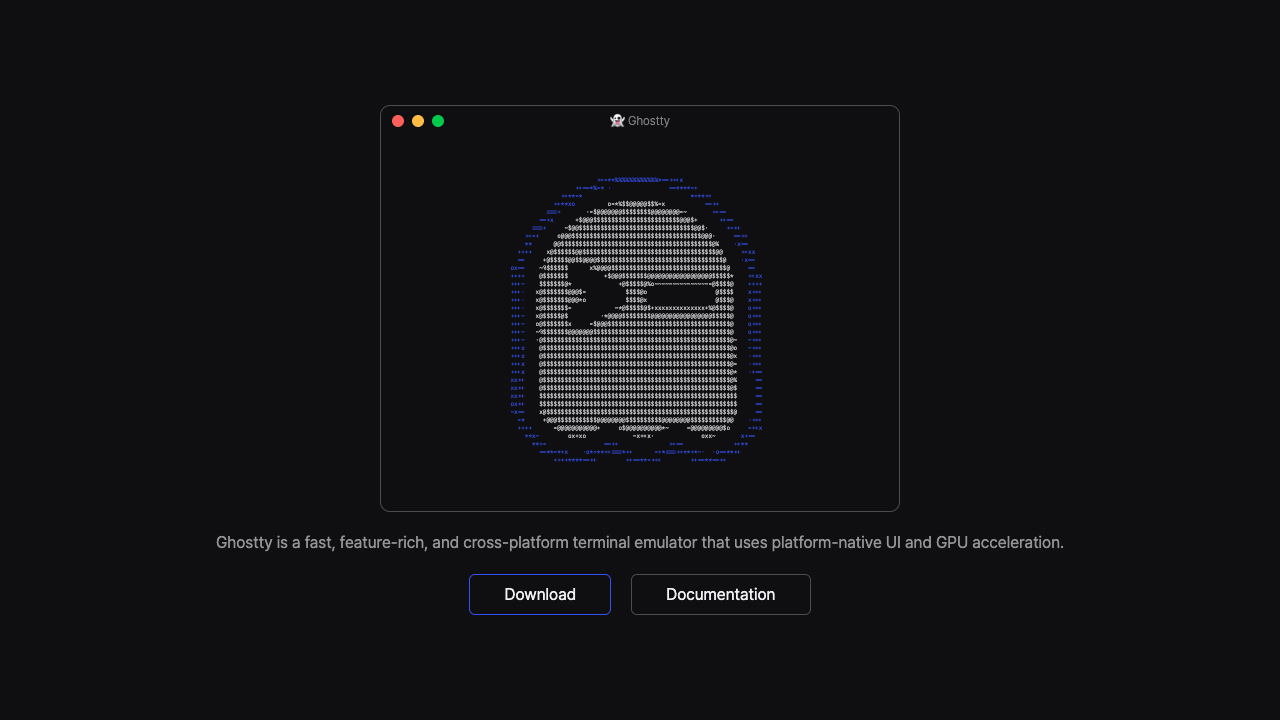
A free, open-source terminal that’s simply fast and simple. Instead of piling on extra features, it runs nimbly, and it has plenty of appearance themes. It’s popular as the first place to switch to from the standard terminal (for Mac and Linux).
cmux
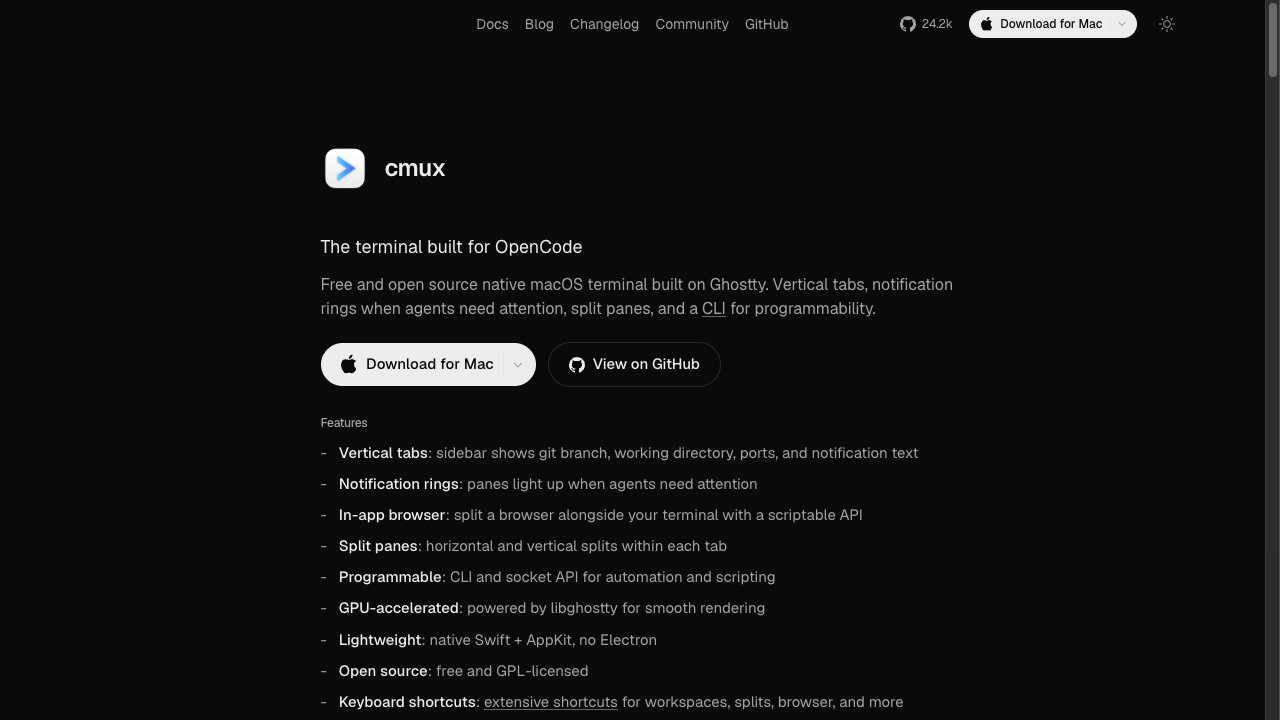
A new-generation, free, open-source terminal built on Ghostty’s rendering engine (for Mac). Its hallmark is vertical tabs down the left side of the screen, where you can see each tab’s folder and Git branch status. It’s designed for a new working style—running several AI coding agents like Claude Code at once and checking whichever tab is free next—and it’s spreading rapidly among developers around the world right now.
To sum up the three differences simply:
| App | Good at | Recommended for |
|---|---|---|
| Warp | AI command suggestions and input completion | Beginners who haven’t memorized commands yet |
| Ghostty | Lightness and simplicity, plenty of color themes | People who first want to switch from the standard terminal |
| cmux | Monitoring multiple AI agents in parallel across tabs | People who use Claude Code and the like daily |
Summary
- The entrance to customization is just one line in .zshrc. Start with a prompt emoticon and color
- Long commands you type often can be shortened with an alias
- To change the whole look, use Starship; to change the app itself, Warp, Ghostty, or cmux
- Even if you fail, deleting the added line puts it back. Experiment without fear
When the screen you open every day is to your taste, your aversion to the terminal naturally fades away.