Welcome to the world of programming. This is the very first step, made for people who feel like they “seriously have no idea where to start.” You don’t need any hard knowledge yet. First, let’s get the tool for writing code set up on your computer.
What is an editor?
Code is just text. So you could actually write it in your computer’s “Notepad.” But in Notepad there are no colors, it won’t point out your mistakes, and it’s very hard to write in.
That’s where an editor comes in. An editor is like a “super-powered Notepad made just for programming.” And among editors, VSCode is by far the most popular one. Let’s start by installing this one.
Here are some of the reasons an editor is so “super-powered.”
- Text gets colored — tags, text, and other parts are color-coded by their role, which makes code much easier to read
- It points out mistakes — for a tag you forgot to close or a typo, it quietly lets you know with a wavy underline and the like
- It suggests words as you type — type partway and suggestions pop up, so even long words are less likely to be mistyped
In the world of code, a single wrong character can break a page. Hunting for that with only your own eyes is tough. An editor is a partner that takes that “hunting” burden off your shoulders.
Handy “extensions”
A big part of VSCode’s appeal is that you can add features later. These add-on parts are called extensions. It’s the same feeling as installing apps on your phone to make it more useful. For your first steps, these three are recommended.
| Extension | What it does |
|---|---|
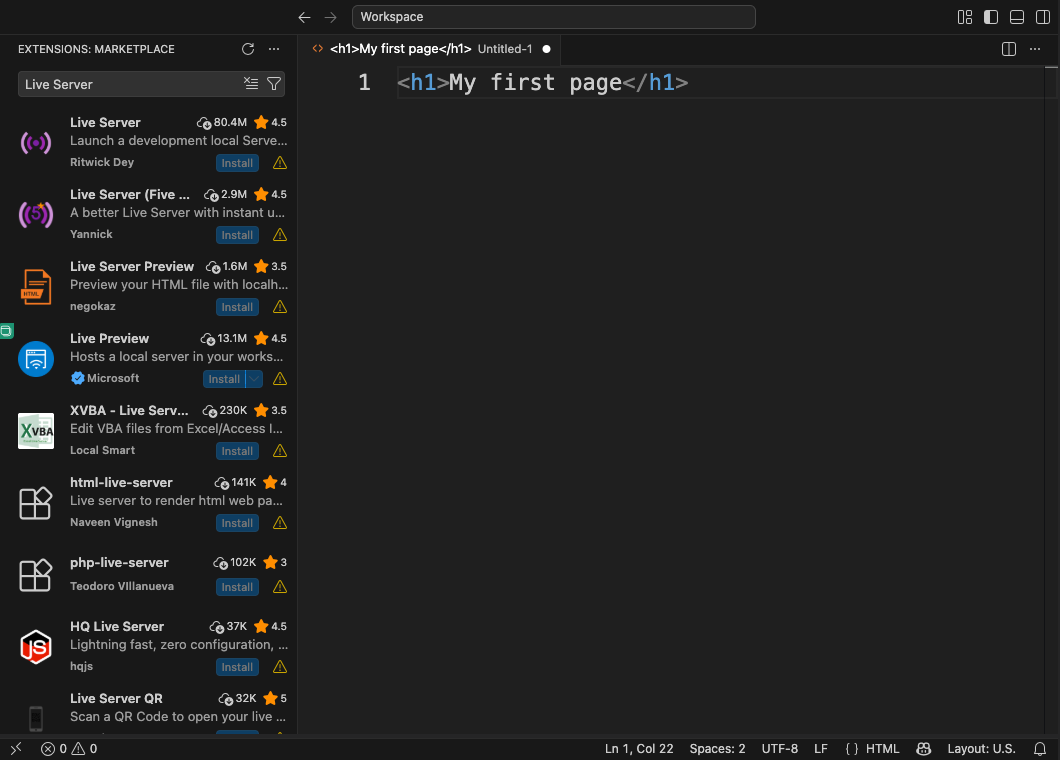
| Live Server | When you save a file, the browser automatically updates to the latest look. No more reopening it every time |
| Prettier - Code formatter | Neatly tidies up messy code at the push of a button |
| Language Pack (optional) | Switches the VSCode screen to your own language. VSCode is in English by default, so this is only if you want it |
All extensions can be installed for free (some do link up with paid services, but the three introduced here are free). When choosing, it’s safest to pick ones with a high install count and a name that exactly matches what’s introduced here. Extensions with similar names often sit side by side, so get into the habit of also checking the author’s name (for Live Server, it’s Ritwick Dey).
SetupThe big picture of an HTML fileThis is where the Prettier you just installed comes in handy. The topic of “closing nested tags neatly” comes up a little further alongSummary of this lesson
- You write code in an editor (VSCode is recommended)
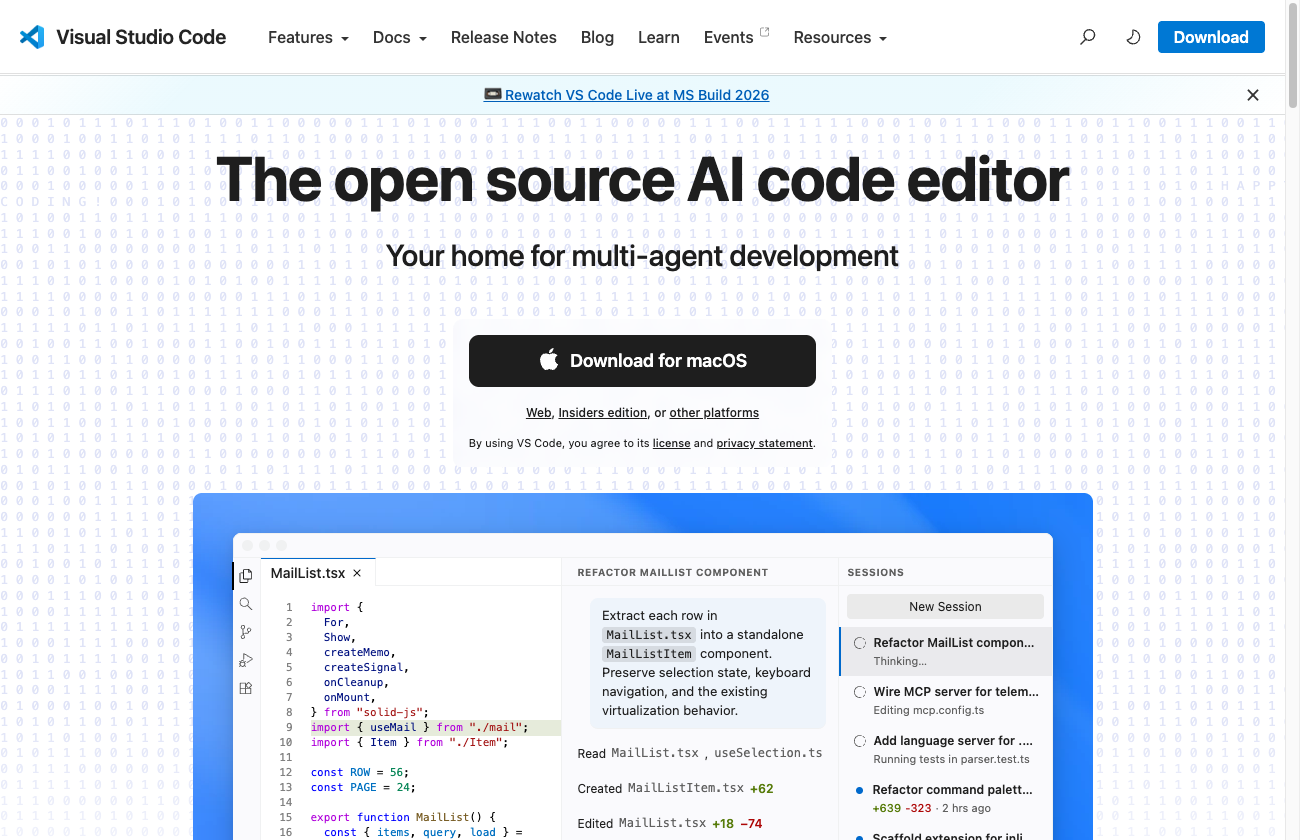
- VSCode is free. Install it from code.visualstudio.com
- With extensions, you can add handy features later (Live Server is a good first one)
- For now, it’s fine if you can just launch it. Settings can wait