
You can now write articles. Next up is appearance. In WordPress, without writing a single line of CSS, you can completely refresh your whole site’s design just by picking a theme. And even after you dress it up, not a single character of your articles disappears—doesn’t this idea sound familiar from somewhere?
A theme is your site’s whole “outfit”
A theme is a dress-up set that bundles your site’s entire look. Colors, fonts, layout, even the shape of the header and footer—all of it changes at once.
The important part is that even when you change the theme, the content like your articles and images stays put. That’s because WordPress manages “content (articles)” and “appearance (theme)” separately.
Adding a theme
From the admin screen, go to “Appearance” → “Themes” → “Add New Theme” to browse the themes in the official directory. There are over 8,000 of them. All free.
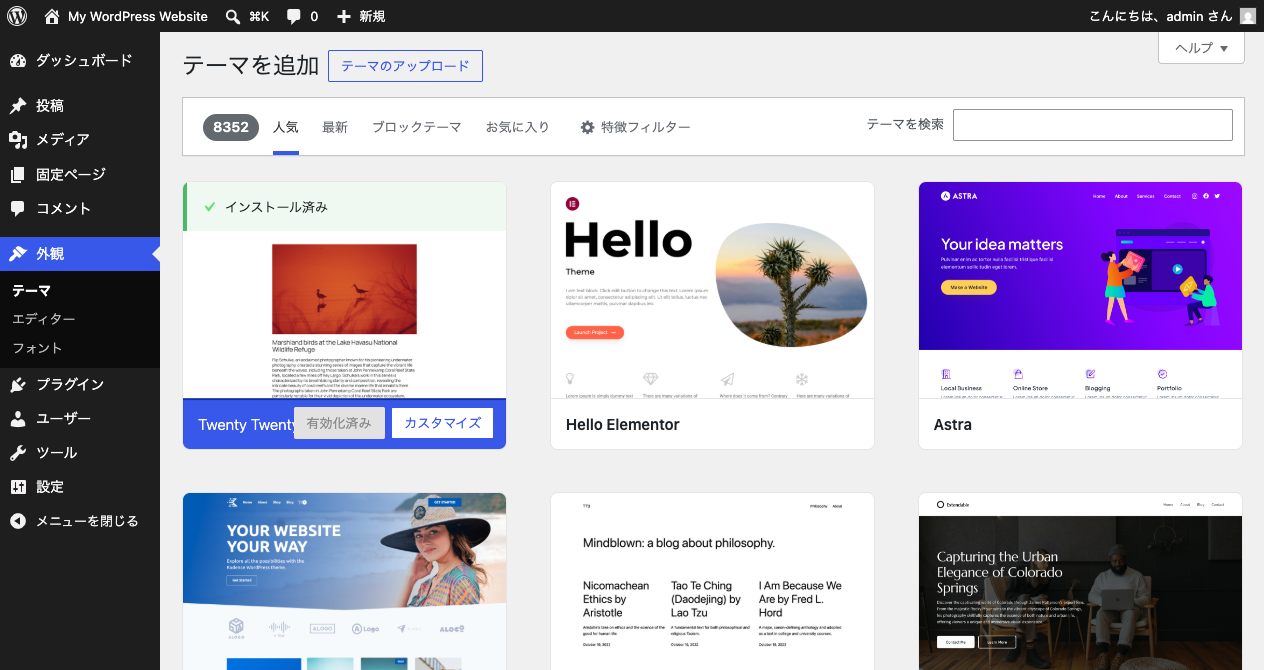
There are two steps.
- Install—download the theme to your site (more clothes in the closet)
- Activate—change into that theme (actually wear it)
Just installing doesn’t change the look. The one outfit you’ve “activated” is the one you’re currently wearing.
How to choose
When there are too many to pick from, look at these three things.
- Check the preview—with “Details & Preview,” you can try the outfit on before committing
- Update date and number of uses—a theme that’s updated regularly and used by many is a safe bet (this same sense will help you later when choosing plugins)
- The official default is plenty to start—the “Twenty” series that ships with WordPress from the start is a simple, high-quality example to learn from
What a theme really is: HTML and CSS
What’s inside a theme?—the answer is an HTML template plus a bundle of CSS. It’s an HTML skeleton that says “pour the article title in here, the body in here,” dressed up with CSS. That’s what a theme really is.
That’s why, when you peek at a WordPress site with the developer tools, you’ll see familiar tags like <header> and <article> lined up. With what you’ve learned, you can read a theme all the way down to “why it looks the way it does.”
How to change just a little without a full outfit swap
“I like the theme, but I just want to change the logo color”—for times like that, the handy tool is the Customize screen. Open it from “Appearance” → “Customize.”
While previewing your site’s look in real time, you can adjust the logo image, colors, menu position, and more without writing code. If swapping themes is “changing your whole outfit,” then customizing is more like “fixing the buttons or hem on the same outfit.” How much you can fix here varies by theme, but if you build the habit of peeking here before you swap themes, you can keep a theme you like for longer.
Summary of this lesson
- A theme is a dress-up set for your whole site—change it and your articles don’t disappear (content and appearance are separate)
- Add one from “Appearance” → “Themes,” in the two steps of Install → Activate
- What a theme really is: an HTML template + CSS—with what you’ve learned, you can read a theme’s insides
- When you want to fix just the logo or colors a little, peek at “Appearance” → “Customize” before swapping themes