
Once you’ve learned the map of the admin screen, it’s finally time to write a post. WordPress’s writing screen is called the block editor, where you assemble text and images out of building blocks called “blocks.” In truth, these blocks map one-to-one to the tags you learned in the HTML course. You already know the essence of the block editor.
The idea of a block
Open the “new post” screen and all that appears is a blank sheet and a title field.
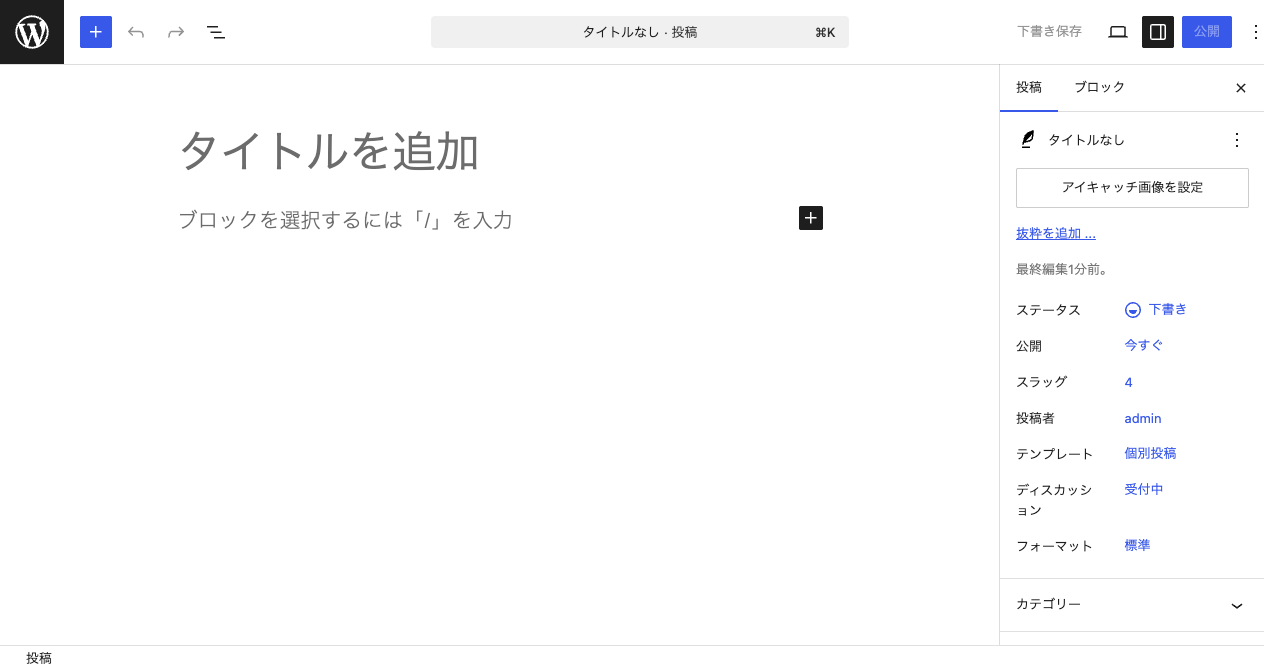
You write the body one chunk = one block at a time. Write a paragraph and it’s a paragraph block; add a heading and it’s a heading block. A block’s true identity is a familiar HTML tag.
| Block | Generated HTML |
|---|---|
| Paragraph | <p> |
| Heading | <h2>–<h6> |
| List | <ul>/<ol> and <li> |
| Image | <img> (with <figure>) |
| Quote | <blockquote> |
| Button | <a> (styled to look like a button) |
In other words, the block editor is a tool that lets people who don’t know tags assemble HTML anyway. Since you do know the tags, you should be able to see right through what each block is doing.
The 3 basics of writing
- Write text—click the body and just type, and it becomes a paragraph block. Press Enter to move to the next paragraph
- Choose and add a block—press the ”+” button, or type
/(slash) at the start of a line to pick from a list of blocks. Narrowing by name, like/heading, is fast - Operate on a block—click a block and a small toolbar appears where you can move (↑↓), transform, and delete it
Each block’s settings live in the right sidebar
Click a block to select it, and a settings panel just for that block appears on the right side of the screen. For a heading block, the level (H2–H6) and text color; for an image block, the image size and alt (alternative text)—the settings that show up change with the kind of block.
After writing, hit “Publish”—the difference from a draft
A post you’re still writing is saved as a draft and isn’t visible to anyone yet. The moment you press the “Publish” button at the top right, the post appears on the front-side site and becomes visible to the whole world.
- Save draft—kept in a state only you can see. You can save partway as many times as you like
- Publish—posted to the site. You can edit it later, or turn it back into a draft
Summary of this lesson
- Posts are written from block building blocks—a block’s true identity is an HTML tag you learned (paragraph = p, heading = h2…)
- Summon a block with ”+” or, faster, the
/(slash) at the start of a line - Keep a post as a draft, and the moment you press “Publish” it goes to the front side—check with preview before publishing