
Last time, you started up your own WordPress site in Playground. This time we finally step into the back side = the admin screen. This is the site’s driver’s seat. At first the menus lined up down the left side can be overwhelming, but you’ll only ever use a few of them. Let’s grab the whole map first.
The entrance to the admin screen
WordPress’s admin screen lives at your site’s address with /wp-admin added on. This is a rule shared across the whole WordPress world.
(your site's address)/wp-adminIn Playground, you can get in by choosing “Dashboard” from the site name on the admin bar up top. Open it, and this screen is waiting for you.
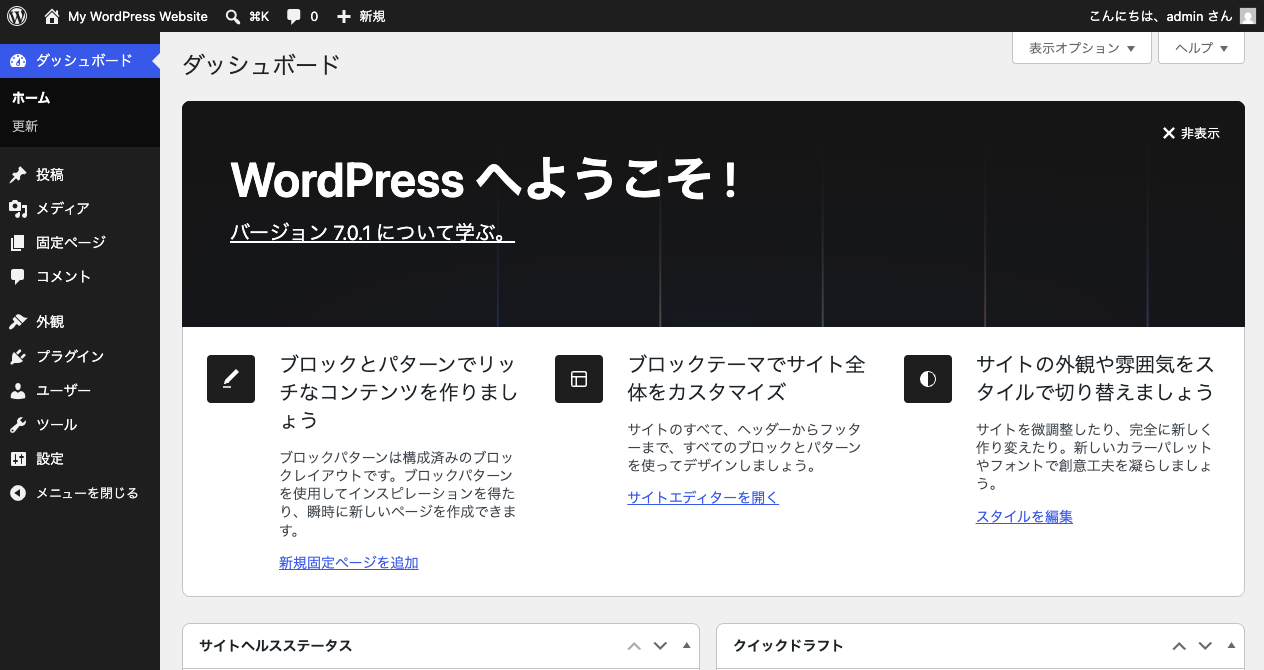
This screen you see right after opening is itself also called the “Dashboard.” It’s like a bulletin board that lets you take in the state of your site at a glance—the “At a Glance” panel shows how many posts and pages you currently have. It’s not a place to read carefully every time, so it’s enough to just remember “this is the admin home.”
The whole map of the left menu
Grouping the menus on the left by their role, it comes out like this.
| Menu | What’s it for? | How often you use it |
|---|---|---|
| Posts | Write and edit blog posts | ★★★ Daily |
| Media | Warehouse for images and videos | ★★ Often |
| Pages | Unchanging pages like “About” and “Contact” | ★★ Sometimes |
| Comments | Managing comments left on posts | ★ |
| Appearance | Swapping and editing the theme (the look) | ★★ Sometimes |
| Plugins | Adding and managing features | ★★ Sometimes |
| Users | Managing writers and administrators | ★ |
| Tools / Settings | Fine settings for the whole site | ★ Only at first |
For now, it’s enough to remember just the five in bold (Posts, Media, Pages, Appearance, Plugins). Open the rest when you actually need them.
The difference between “Posts” and “Pages”
This is where beginners first get confused. Both are menus for “making a page,” but their roles differ.
- Posts—articles that stack up with dates. Blogs, announcements, diaries. The newest lines up on top
- Pages—pages with a fixed spot that don’t move. “About,” “Access,” “Contact”
A “one-pager” like Shima’s self-introduction page is a Page; “I ate ramen today” is a Post—thinking of it that way makes it easy to grasp.
A satisfying first setting: your site’s name
The left menu’s “Settings” → “General” gathers the basic settings that affect the whole site. The first two you’ll want to change are the two at the very top.
- Site Title—your site’s name. A freshly-made site’s “My WordPress Website” can be changed here to your own site name
- Tagline—a short description of the site. Depending on the theme, it’s shown near the title
After changing them, don’t forget “Save Changes” at the bottom of the page. The new name is reflected in the front-side header and the browser tab. The round trip of “change a setting → save → check on the front side” comes up again and again in the lessons ahead—it’s a basic move.
Summary of this lesson
- The admin screen is the operator-only driver’s seat at your site’s address + /wp-admin
- The first menus to remember on the left are just five: Posts, Media, Pages, Appearance, Plugins
- Posts = articles that stack up with dates, Pages = unchanging one-pagers—this is the first spot people get confused