
WordPress is originally software you install on a server (a computer that houses your site) to use. But renting a server just to practice is overkill—so we’ll use the official WordPress Playground. Just open a URL in your browser, and a whole, real WordPress springs to life.
Opening it takes just one URL
Just open the following URL in your browser. Add ?language=en and it starts in English.
https://playground.wordpress.net/?language=enWait a few seconds and a site called “My WordPress Website” starts up inside the screen. This is your very own, freshly-made WordPress site.
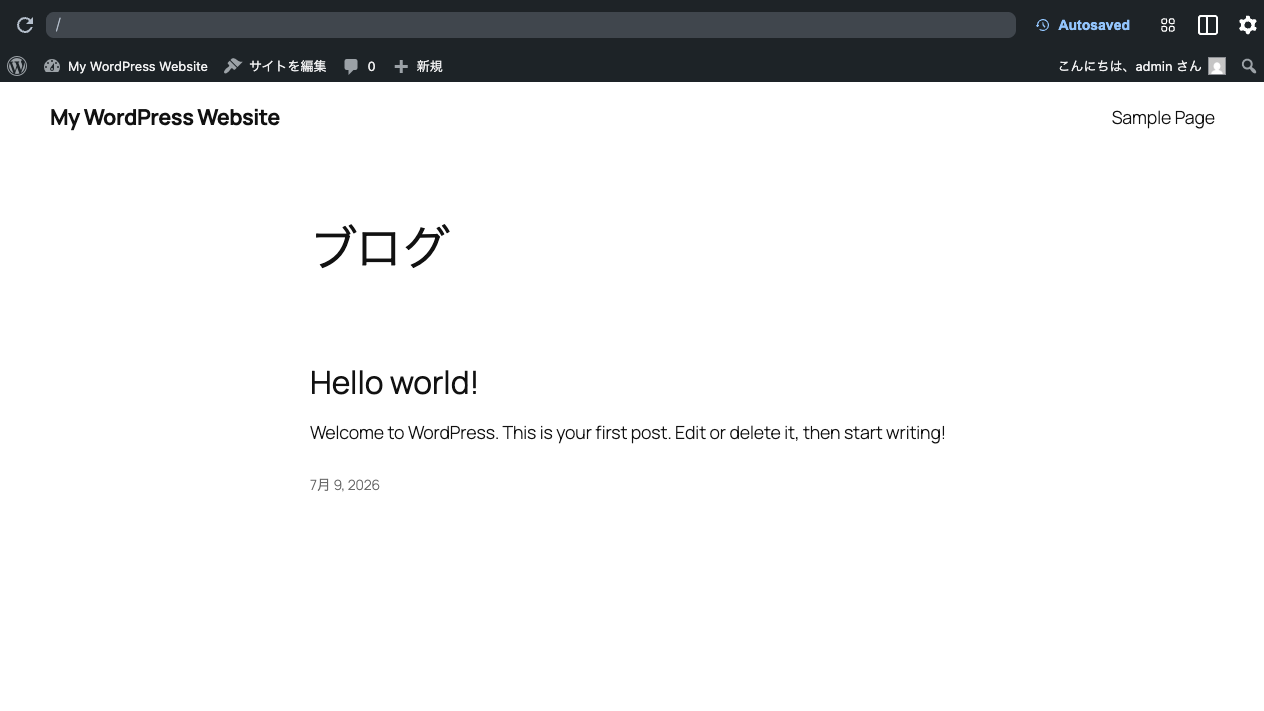
How to read the screen
The Playground screen has a “browser within a browser” structure—there’s another small browser inside your browser.
- The black bar at the top—Playground’s own control bar. It shows the address of the WordPress site inside
- The screen below it—your WordPress site. This is the part that looks like the live site (the front side)
- The thin admin bar at the top of the site (“Edit site,” “New,” etc.)—an operation menu visible only to logged-in people
Normally you have to log in yourself to use WordPress, but in Playground you’re already logged in as the administrator (admin) from the start. You can jump straight into the admin side.
What you can and can’t do in Playground
Inside Playground, you can do almost exactly what you can in real WordPress.
- You can—write posts, swap out themes, install plugins, do everything in the admin screen. All the practice in this course is completed entirely within Playground
- You can’t—show the site you built to other people. Your site lives only inside your browser and isn’t published to the internet
“You can practice the exact same operations as the real thing, in a safe place no one else sees”—that’s what Playground really is. The moves you pick up here work as-is in real WordPress.
Going back and forth between “front” and “back”
A WordPress site has two faces.
- Front (the site)—the pages visitors see. The blog screen showing now
- Back (the admin screen)—the operator-only screen where you write posts and change settings
On the admin bar up top, hover your mouse near the site name and an entryway to the “Dashboard” appears. From here you can enter the back side (the admin screen). We’ll practice this back-and-forth feel carefully in the next lesson.
Summary of this lesson
- With WordPress Playground, you can touch WordPress with no install and no server
- The URL to open is
playground.wordpress.net/?language=en—you’re logged in as administrator from the start - It’s a practice ground where a reload erases everything—don’t fear breaking it, touch away