
When you’re writing JavaScript, there are plenty of moments where you want to check “what’s inside this variable right now?” In those moments, console.log lets you quietly peek inside without putting anything on the page.
Let’s open the console
The console lives inside the developer tools that come built into your browser from the start.
- Right-click on the page → choose “Inspect” (or press
F12on Windows,Command+Option+Ion Mac) - From the tabs at the top of the panel that opens, choose “Console”
That’s all the setup you need. This is where the “little notes” from JavaScript arrive. Open it up, and here’s what you see.
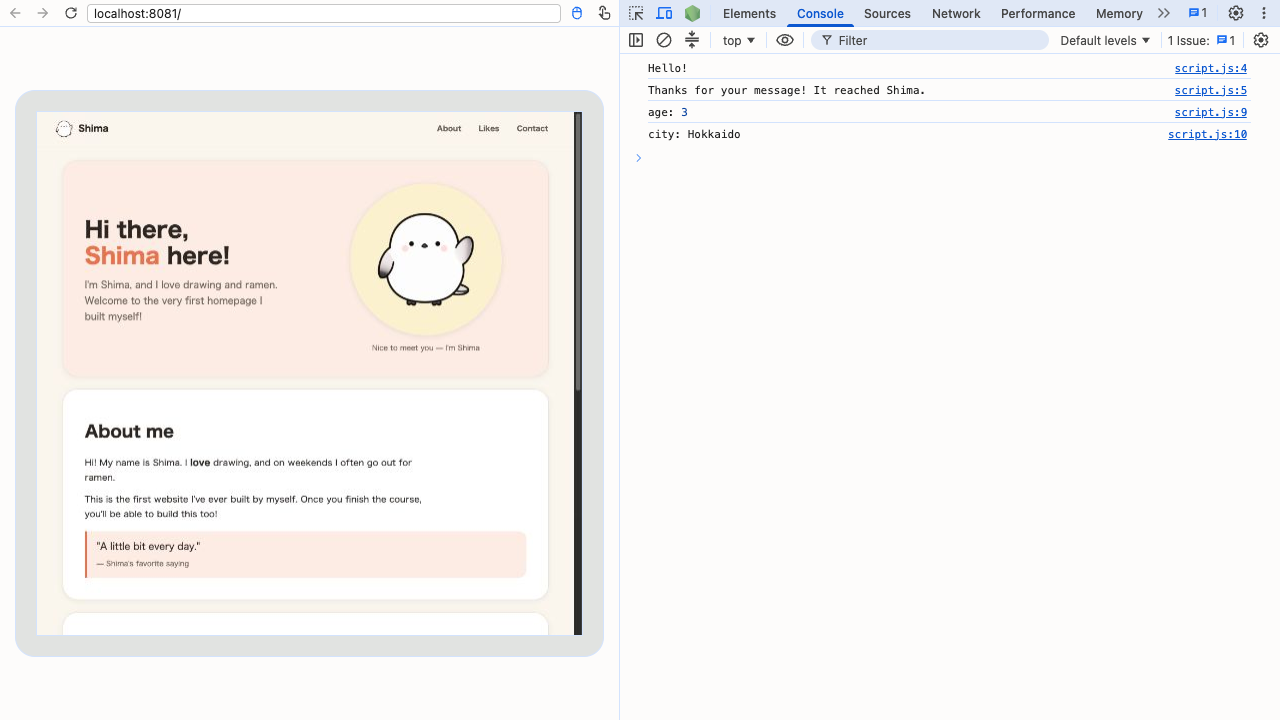
console.log line up on the right. The right edge of each line marks “which line of script.js it came from.”Actually, the console isn’t just a place that waits to display things. You can type JavaScript straight into the input area and run it right there. Try typing 1 + 2 and pressing Enter—you’ll immediately get back 3. It’s also a little laboratory where you can quickly test “does this way of writing it work?” before you put it in a file.
Let’s write some
console.log("Hello!");Write this in script.js and open the page, and “Hello!” shows up in the console. Nothing appears on the screen (the page itself). The place it appears is different—that’s the big difference from textContent.
| Part | Meaning |
|---|---|
console | The console (where the notes are delivered) |
.log | The request “please record this” |
Inside ( ) | What you want to display |
Checking what’s inside a variable
Where console.log really shines is when you want to check what’s inside a variable.
const thanksMessage = "Thanks for your message!";
console.log(thanksMessage);
“Thanks for your message!” shows up in the console. If you write the variable’s name without wrapping it in " ", you get the contents of the box.
Adding a label makes it easier to tell apart
As you have more things to check, a lone number sitting in the console can leave you thinking “wait, which variable was that?” In those cases, separate things with a , (comma) to pass the label and the contents together.
const age = 3;
const city = "Hokkaido";
console.log("age:", age);
console.log("city:", city);
The console shows them with names attached, like “age: 3” and “city: Hokkaido”. Since you can separate as many things as you like with commas, it becomes clear at a glance “which value is which.”
You can also check “how far did it run?”
When your code doesn’t work the way you expected, you can also use it to check “did it even run this far?”
console.log("Got this far!");

form.addEventListener("submit", function (event) {
  console.log("Button was pressed!");
});
If “Button was pressed!” doesn’t show up in the console, you know that pressing it isn’t triggering the inner code. It’s like a flashlight for narrowing down where the breakdown is.
TipsDon't panic when an error appearsFor how to read those red errors in the console, check out this handy tipSummary of this lesson
console.log(contents)lets you quietly display things in the console- Open the console with right-click → “Inspect” → “Console” tab
- It’s a huge help for checking a variable’s contents, investigating “how far did it run?”, and spotting errors