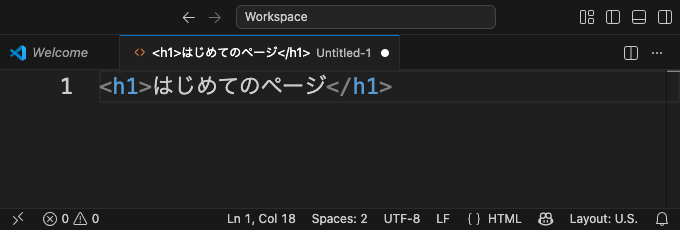
Write just one line in an empty file and open it in your browser. "Type it in → see it on screen" — your very first taste of success starts here.
You’ve got your tool (VSCode) and your place (a folder) ready. Now it’s time to make your first HTML file. The goal here is just one thing: to see with your own eyes that “what I wrote showed up on the screen!” It’s the most satisfying moment in all of programming.
The secret of the name “index.html”
The file you’re about to make is named index.html. This name isn’t just something we came up with on a whim. In the world of the web, there’s a convention that the cover page of a folder is named index.
Just like the table of contents (index) at the start of a book, it’s a signal that says “start here first.” That’s why the first page of websites all over the world is usually named index.html. The one page you make today joins that same club.
A quick peek at the “tag” you’re about to write
What you’ll type this time is a single line: <h1>My First Page</h1>. The angle-bracket marks like <h1> and </h1> are called tags, and they’re the signposts that tell the browser “everything from here to here is a big heading.”
We’ll take our time with how it all works in the HTML course, so for now it’s enough to grasp just this: when you wrap text in tags, the browser displays it with that meaning.
A file only takes effect once you save it
There’s an important habit that will come up again and again from here on. Just writing in the editor won’t show up on the screen yet. Only once you save does it reach the browser.
A checklist for when things don’t work
Your very first page is prone to little stumbles. When something makes you go “huh?”, check these from the top down.
Did you save? — the ● on the tab is the unsaved sign
Is the file name correct? — the spelling of index.html. In particular, make sure the extension didn’t stay as .txt (index.html.txt)
Are the brackets the plain ones? — use < and >. Full-width <> won’t work as tags
Did you open the right file? — make sure you’re not opening an old file from a different folder
Once you’ve written something, save it (Ctrl/⌘ + S)
Open it in the browser and your text appears
Try it: your first HTML file
① Make a file
Make a new file inside the working folder you opened in VSCode.
Click the “New File” icon next to the folder name on the left side of VSCode (right-click → “New File” works too)
Name it index.html and press Enter
Now you have one empty HTML file. index is the go-to cover-page name that stands for “the first page.”
② Write just one line
Try typing the following single line into the index.html you made. Copying it exactly is perfectly fine.
<h1>My First Page</h1>
When you type it into the editor, the tags automatically get colored like this.
Once you’ve typed it, be sure to save (Ctrl + S, or ⌘ + S on a Mac).
③ Open it in the browser
Open the index.html you saved in your usual browser (like Chrome). The easiest way is to drag and drop the file onto the browser window. Double-clicking the file will usually open it in the browser too.
Then — the words “My First Page” should appear on the screen in big letters.
On a completely blank page, just the one line you wrote appears, big and bold. This is your first web page.
You’ve got the hang of the “type it in → see it on screen” flow. But opening the file again every time you make a change is a bit of a hassle, isn’t it?
FAQ
Why does the file have to be named index.html?
In the world of the web, there's a convention that the page you show first in a folder is named index. When you publish a page, visiting just the address automatically shows index.html.
When I opened it in the browser, the text showed up with the tags and all. Why?
There's a good chance the file isn't being recognized as HTML. Check the name and make sure the extension hasn't turned into something else, like index.html.txt.
I wrote something, but nothing shows up in the browser.
The most common cause is forgetting to save. If there's a dot on the VSCode tab, that's the sign it's unsaved. Save the file, then open (or refresh) the browser again.