
A product page needs “data in a fixed shape” like price, size, and material, separate from the body’s description. If you hand-write these into the body, the formatting ends up inconsistent, and you’re stuck later when you want to show, say, just the price in a list. That’s where custom fields come in—“extra input boxes” you attach to an article.
Custom fields = an article’s profile section
Posts, pages, and custom post type articles can hold, besides the body, as many name-and-value pairs as you like.
Product "Shimaenaga cushion"
├── Body: Its fluffy, perfectly round form… (free text)
├── price: 3300          ← custom field
├── size: 30cm diameter  ← custom field
└── material: 100% polyester
Free text goes in the body, data in a fixed shape goes in fields. This division of labor builds a structure that’s easy to pull data out of later.
Show the input boxes with the standard feature
WordPress’s standard custom fields section is hidden at first in the block editor. Steps to show it:
- In the product’s editing screen, open the ”⋮” (Options) in the top right → “Preferences”
- Turn on “Custom Fields” among the “Panels” (the screen reloads)
- A “Custom Fields” section appears at the bottom of the editing screen
After that, from “Add New,” enter name price and value 3300, then “Add Custom Field.” Do size and material the same way.
Display it in the template: get_post_meta
You pull out the saved fields with get_post_meta. Let’s finish off single-shohin.php to look product-like.
<?php get_header(); ?>

<main class="section">
  <?php while (have_posts()) : the_post(); ?>
    <article>
      <?php the_post_thumbnail('large', ['class' => 'product-thumb']); ?>
      <h1 class="page-heading"><?php the_title(); ?></h1>

      <?php $price = get_post_meta(get_the_ID(), 'price', true); ?>
      <p class="price">
        ¥<?php echo $price !== '' ? number_format((int) $price) : '—'; ?>
        <small>(tax included)</small>
      </p>

      <div class="entry-content">
        <?php the_content(); ?>
      </div>

      <table class="spec">
        <tr>
          <th>Size</th>
          <td><?php echo esc_html(get_post_meta(get_the_ID(), 'size', true)); ?></td>
        </tr>
        <tr>
          <th>Material</th>
          <td><?php echo esc_html(get_post_meta(get_the_ID(), 'material', true)); ?></td>
        </tr>
      </table>
    </article>
  <?php endwhile; ?>
</main>

<?php get_footer(); ?>
get_post_meta(get_the_ID(), 'price', true) means “please give me the value of this article’s price.” Since it’s a get_-family function, displaying it needs an echo, as we’ve seen.
The newcomer esc_html() is the escaping applied when displaying a value. Outputting data that came from an input box as-is opens a gap (a security hole) where malicious code can slip in, so “escape a value you pulled out before outputting it” is an iron rule in practice. A theme’s safety is decided by this habit.
.product-thumb {
  width: 100%;
  max-height: 320px;
  object-fit: cover;
  border-radius: 12px;
  display: block;
}
.price {
  font-size: 24px;
  color: #c0562a;
  font-weight: bold;
  text-align: center;
}
.spec {
  border-collapse: collapse;
  width: 100%;
  max-width: 700px;
  margin: 24px auto 0;
}
.spec th, .spec td {
  border: 1px solid #ddd;
  padding: 8px 12px;
  text-align: left;
}
.spec th {
  background: #eaf4f6;
  color: #2a6f7c;
  width: 30%;
}
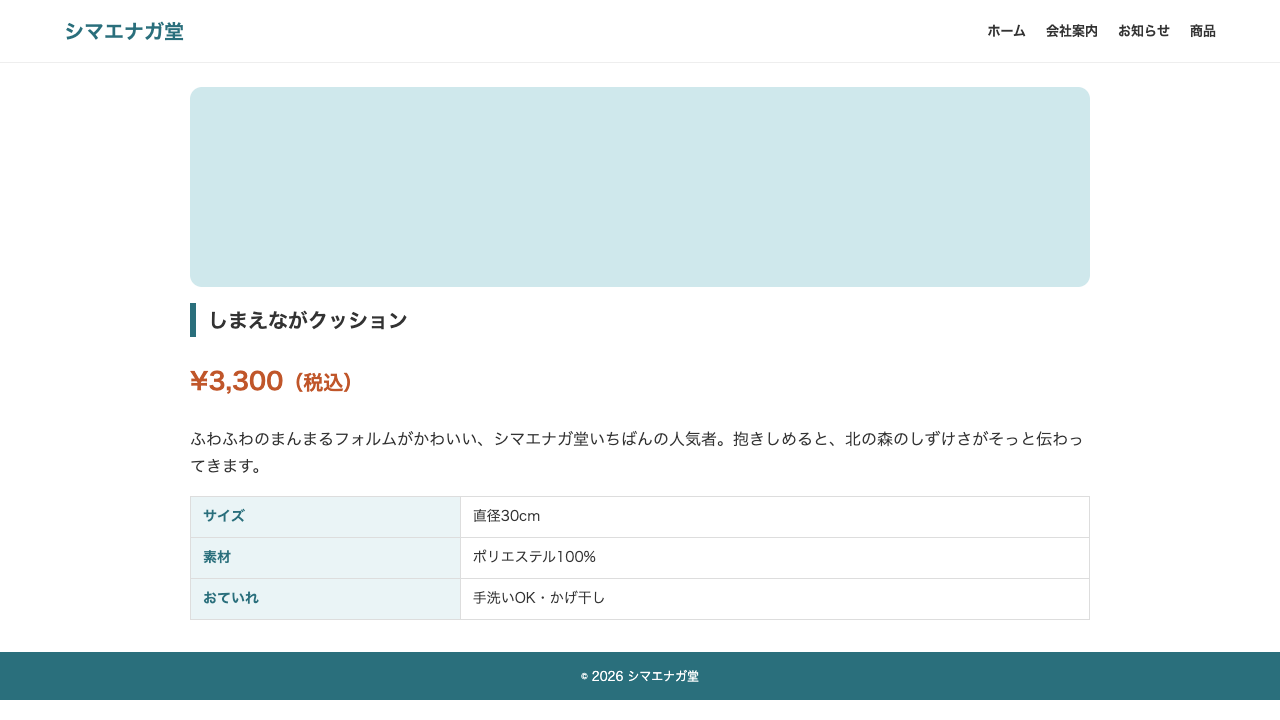
Once complete, the product detail takes on this look.
In practice, SCF (ACF) is the go-to
The standard custom fields section is, honestly, plain in its input screen and prone to entry mistakes. So in practice, installing a plugin dedicated to custom fields is the go-to.
- You can design dedicated input boxes like “Price (numbers only)” and “Size (text),” and keep them permanently in the editing screen
- There’s a rich variety of input box types—image, date, dropdown, and more
- On the template side, you display with a dedicated function like
the_field('price')
The go-to in this field was long a plugin called ACF (Advanced Custom Fields). What you can install now by searching in the admin screen’s “Plugins” → “Add New” is SCF (Secure Custom Fields), which inherits that lineage. If you want to try it as a continuation of this course, installing SCF is all you need.
The concept is completely the same as what you learned today (name-and-value pairs plus display in the template). Now that you’ve understood the mechanism with the standard feature, you should be able to read the SCF and ACF documentation smoothly.
Summary of this lesson
- A custom field is a “name-and-value pair” you give an article. Free text goes in the body, data in a fixed shape goes in fields
- Display with
get_post_meta(get_the_ID(), 'name', true)plus echo—and escape the output withesc_html()as an iron rule - The go-to in practice is the SCF (successor to the old ACF) plugin. The mechanism is the same as the standard feature, and information you searched under “ACF” applies to SCF almost as-is